The conversation list: tabs and the Display menu
What each list in the sidebar holds, what the tabs above a list do, and how to change what each row shows.
Updated 3 min read
Every email thread is a conversation. The sidebar decides which conversations the list shows, the tabs above the list narrow it down, and the Display menu changes how much each row shows.
The lists in the sidebar
List | What it holds |
|---|---|
All | Unassigned conversations and conversations assigned to you, across every inbox you work |
Unassigned | Conversations nobody has picked up yet, across every inbox you work |
Assigned to me | Conversations assigned to you, from every inbox |
Assigned to others | Open conversations your teammates own |
Following | Open conversations you follow |
Unread | Conversations assigned to you or followed by you, with unread mail |
Reminders | Conversations you set a reminder on. Due ones come first. |
Closed | Conversations with a finished status, such as Resolved |
Drafts | Messages you started and have not sent |
Sent | Conversations where you sent the latest message |
Snoozed | Conversations snoozed until later |
Spam | Mail that looks like spam |
Trash | Conversations moved to trash |
Under Teams, each team lists its inboxes. Select an inbox to see only its conversations.
The tabs above a list
All, Unassigned, Assigned to me, Assigned to others, Following and Reminders have three tabs:
Tab | Shows |
|---|---|
Active | Conversations still being worked on |
Closed | Conversations with a finished status, like Resolved or Closed |
All | Both |
An inbox has its own tabs:
Tab | Shows |
|---|---|
Unassigned | New mail nobody has picked up |
Assigned | Conversations someone in the team has picked up |
Closed | Finished conversations, until they are reopened or archived |
Archived | Filed conversations, out of the way |
Snoozed | Conversations waiting to come back |
See Statuses for what makes a status finished, and Archive, close, reopen and trash for how conversations move between tabs.
What a row shows
Each row shows the sender, subject, the start of the latest message and the time. A dot before the name means it is unread. Depending on the conversation, a row can also show:
its status and tags
the inbox it is in, in lists that span inboxes
a speech bubble with the number of internal notes
a paperclip when it has attachments
a lock when it is private
Draft when you have a draft reply, or a teammate's name when they have one
"is replying" when a teammate is writing a reply right now
The list updates by itself. If new conversations arrive while you are scrolled down, a button such as 2 new appears at the top. Select it to jump back up.
The Display menu
Select Display (the sliders icon) above the list to choose what each row shows.
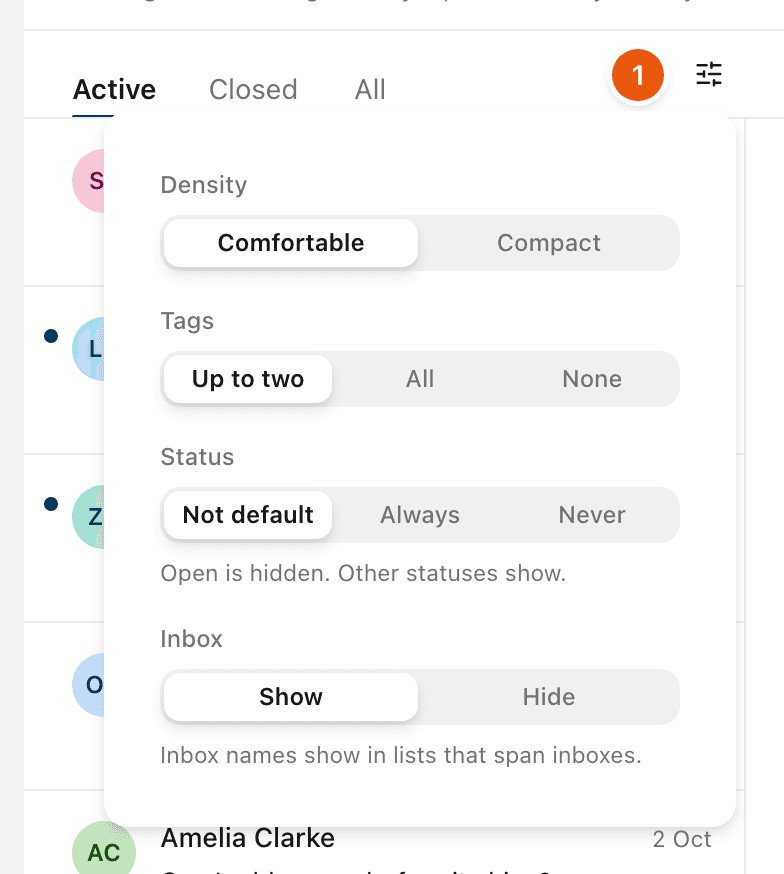
Option | Choices |
|---|---|
Density | Comfortable or Compact, a shorter row |
Tags | Up to two, All or None |
Status | Not default hides the default status, such as Open, and shows any other. Always or Never. |
Inbox | Show or Hide the inbox name, in lists that span inboxes |
Select Reset to go back to the defaults. Your choices are kept in this browser, for you only, and apply to every list. The phone app has its own Display options.
Inside a conversation
Open a conversation to read it. The buttons along the top act on it:
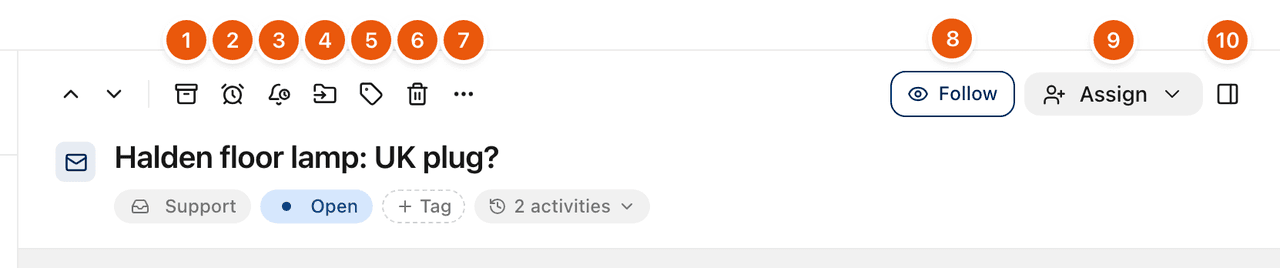
Archive: file it away. See Archive, close, reopen and trash.
Snooze: hide it for the team until later. See Snooze for the team.
Remind me: a reminder only you get. See Reminders only you see.
Move to inbox: see Move a conversation to another inbox.
Tags: see Tags.
Move to trash.
More actions: status, privacy, Mark as unread, Copy link, Print and spam.
Follow: see Follow a conversation.
Assign: see Assign a conversation.
Show details: see The details panel: Activity and who has read it.
When the conversation is narrow, for example with the details panel open, Move to inbox and Tags move into More actions. The + Tag button under the subject is always there.
Use J and K to go to the next and previous conversation. See Keyboard shortcuts.
Related
Was this helpful?
Still stuck?
Email hello@zevinbox.com with what you tried, and the team answers.