Private conversations and access requests
Hide a sensitive conversation from the rest of the team, and let teammates ask to read it.
Updated 2 min read
Make a conversation private when it holds something sensitive, like a personal complaint or an HR matter. Teammates without access still see that it exists, but not who sent it, its subject or its messages.
Who can read a private conversation
the person it is assigned to
the people who followed it when it was made private
owners and admins
anyone who is granted access later
Make a conversation private
Open the conversation.
Select More actions (the three dots).
Select Make private.
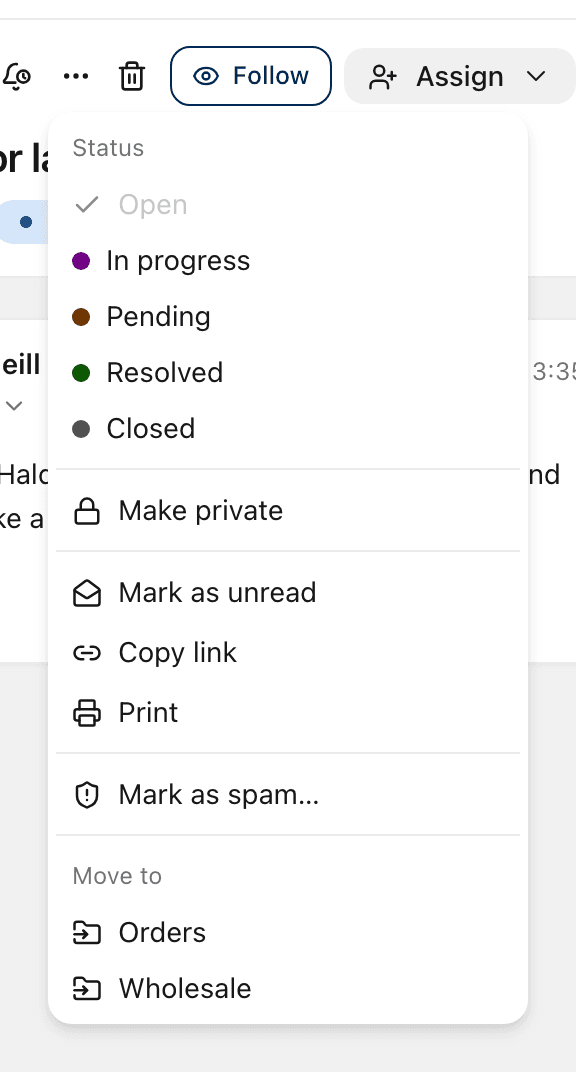
The conversation shows Private under its subject, and a lock in the list.
Make private is offered to the assignee, to owners and admins, and to anyone on an unassigned conversation. If you make an unassigned conversation private, it is assigned to you.
When someone else has it
If you are an owner or admin and the conversation is assigned to someone else, ZevInbox asks Make this conversation private?:
Keep and their name, for example Keep Mei: they stay assigned and keep access.
Assign to me: you take it over, and they lose their access. Owners and admins can still open it, and other teammates can request access.
What others see
In the list, the row reads Private conversation and Content hidden. When they open it, they see This conversation is private and a Request access button.
Ask for access
Open the private conversation.
Select Request access.
The button changes to Access requested. The assignee and every owner and admin are notified. You are notified when someone grants your request.
Grant access
The assignee, owners and admins can grant requests.
Open the conversation.
Select More actions.
Under Access requests, select Grant and the person's name, for example Grant Jonah.
Make it visible again
Open More actions and select Make visible to the team. Everyone who can open the inbox can read it again, and any requests still waiting are closed.
Related
Was this helpful?
Still stuck?
Email hello@zevinbox.com with what you tried, and the team answers.