The details panel: Activity and who has read it
See a conversation's customer, inbox, status, assignee and followers, everything that happened to it, and who on your team has read it.
Updated 2 min read
The details panel sits beside an open conversation. Select Show details (the panel icon at the top right) to open it, and the cross or Hide details to close it. It has three tabs.
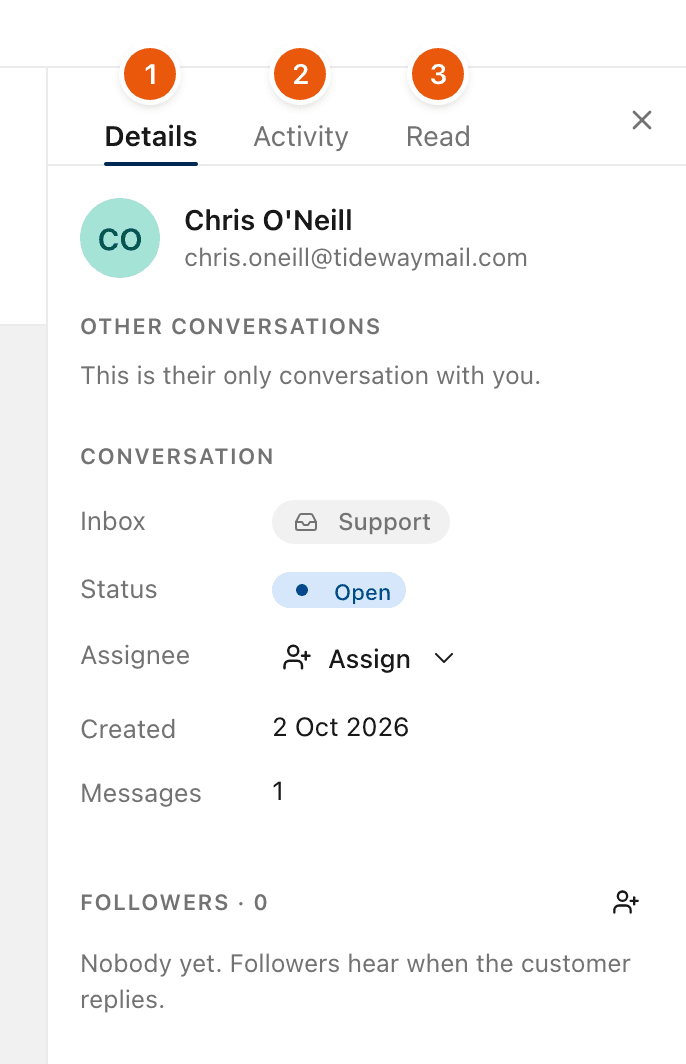
1. Details
The customer: their name and email address. Select the address to copy it.
Other conversations: anything else this customer has written to you about. Select one to open it.
Conversation:
Row | What it shows |
|---|---|
Inbox | The inbox it is in |
Status | Its status. Select it to change it. |
Assignee | Who has it. Select it to assign. |
Created | When it started |
Messages | How many emails are in the thread |
Followers: who hears when the customer replies, with Add follower. See Follow a conversation.
Tags: its tags, with a button to add more. See Tags.
2. Activity
A record of everything that happened to the conversation, newest first, with who did it and when. For example:
messages received and sent, and emails that could not be delivered
assigned and unassigned
status changes, archived, reopened, snoozed and unsnoozed
moved to another inbox, to trash or to spam, and back
tags added or removed
followers added or removed
notes added and drafts shared
made private or visible to the team
You can see the same record from the activities chip under the subject, for example 2 activities.
3. Read
Who on your team is up to date with this conversation:
Section | Who is in it |
|---|---|
Read | People who have read the latest message. Point at a name to see when. |
Yet to read | Everyone else who can open it, including anyone who marked it unread |
Accessible to | Everyone who can open the inbox, with their role |
Use it before you reply to check whether a teammate has already seen the latest message.
Related
Was this helpful?
Still stuck?
Email hello@zevinbox.com with what you tried, and the team answers.