Statuses
Show where each conversation stands, like In progress or Resolved, and how statuses move on their own.
Updated 2 min read
A status says where a conversation stands. Every conversation has one, and anyone who can open the conversation can change it.
The statuses you start with
Status | Kind | Use it when |
|---|---|---|
Open | Active, the default | It is new or waiting for your team |
In progress | Active | Someone is handling it |
Pending | Active | The next step belongs to the customer or another team |
Resolved | Finished | The question is answered |
Closed | Finished | It needs nothing more |
Owners and admins can rename these, change colours, add more and choose the default in Settings › Statuses. See Set up statuses, tags and business hours.
Change a conversation's status
Open the conversation.
Select the status under the subject, for example Open.
Choose the new status.
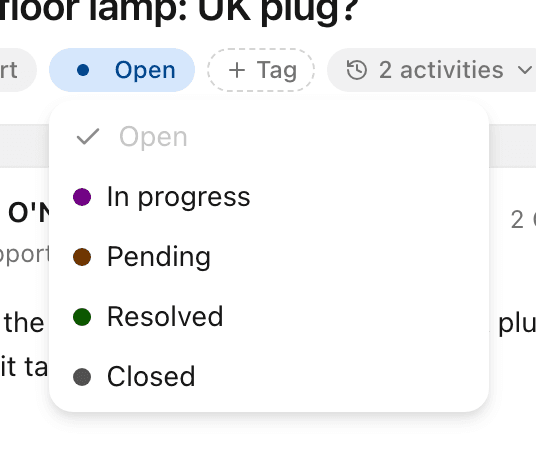
You can also change it from More actions › Status, or from the Status row in the details panel.
Active and finished
Each status is either Active (work in progress) or Finished (work done).
A conversation with an active status shows in the Active tab of your lists.
A conversation with a finished status moves to Closed: the Closed tab of your lists and of its inbox, and Closed in the sidebar.
Statuses that change on their own
A new conversation starts with the default status.
Archive gives an active conversation a finished status: the one your organization celebrates when that is a finished status, otherwise the first finished one, usually Resolved.
Reopening an archived conversation that has a finished status puts it back to the default.
When the customer writes again, a finished status goes back to the default, so the conversation shows as active again. Automatic replies, like out-of-office messages, and mail that looks like spam do not do this.
Celebrations
Your organization can pick one status to celebrate. Moving a conversation into it plays a short burst of confetti, for you only. Anyone can turn celebrations off for themselves in Settings › Notifications.
By default the list hides the default status and shows any other. Change this with Display › Status. See The conversation list: tabs and the Display menu.
Related
Was this helpful?
Still stuck?
Email hello@zevinbox.com with what you tried, and the team answers.