Set up statuses, tags and business hours
Shape your team's workflow with statuses, label conversations with tags, and set the hours Reports counts in.
Updated 3 min read
Statuses, tags and business hours are set once for the whole organization. Owners and admins manage all three in Settings. Members do not see these pages, but they use statuses and tags in every conversation.
Statuses
A status says where a conversation is in your workflow, for example Open, In progress, Pending or Resolved. Go to Settings › Statuses.
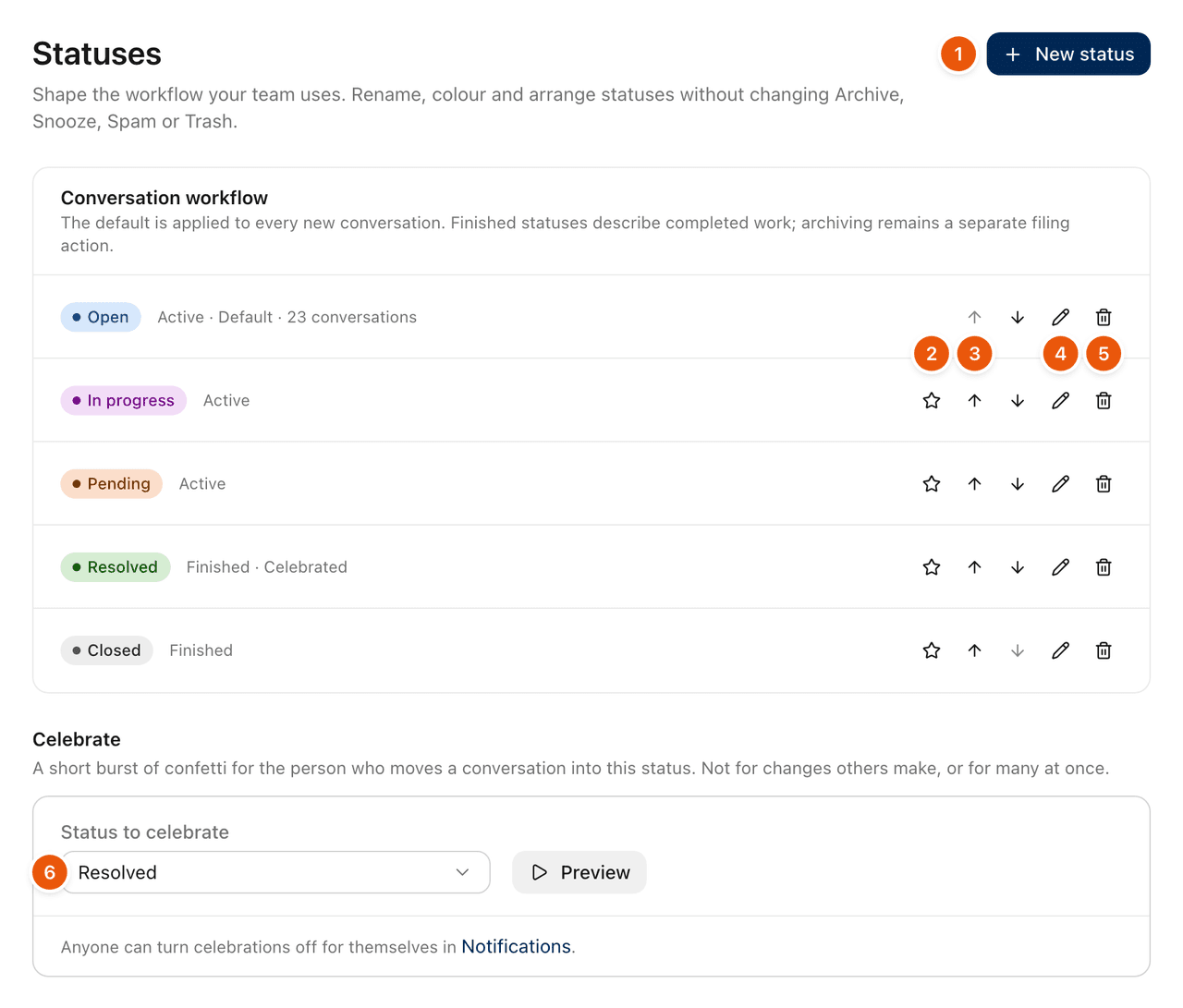
New status adds one. Give it a Name, a Behaviour and a Colour.
Active: work is still in progress.
Finished: work is resolved or closed. Reports counts a move into a Finished status as resolved.
The star makes a status the default. New conversations, and conversations that reopen, go into the default. It must be an Active status.
The arrows move a status up or down. The order is the order your team sees.
The pencil edits its name, behaviour or colour. The change shows everywhere the status appears.
The bin deletes it. Its conversations move to the default status, or to another status if you are deleting the default. You cannot delete the last status.
Celebrate chooses one status that gives a short burst of confetti to the person who moves a conversation into it. Choose Off to turn it off. Each person can turn celebrations off for themselves in Settings › Notifications.
Statuses are separate from Archive, Snooze, Spam and Trash, which stay as they are. See Statuses for using them day to day.
Tags
Tags label conversations across every inbox, so related ones are easy to find again. Go to Settings › Tags.
New tag creates one, with a name and a colour.
Each tag shows how many conversations carry it. Its menu has See conversations, Edit and Delete.
Editing a tag changes it on every conversation that has it.
Deleting a tag removes it from every conversation. This cannot be undone.
You can search tags and sort them, for example by Most used. Anyone can add tags to a conversation. See Tags.
Business hours
Business hours tell Reports when your team is working, so response and resolution times can leave out nights and weekends. Go to Settings › Business hours.
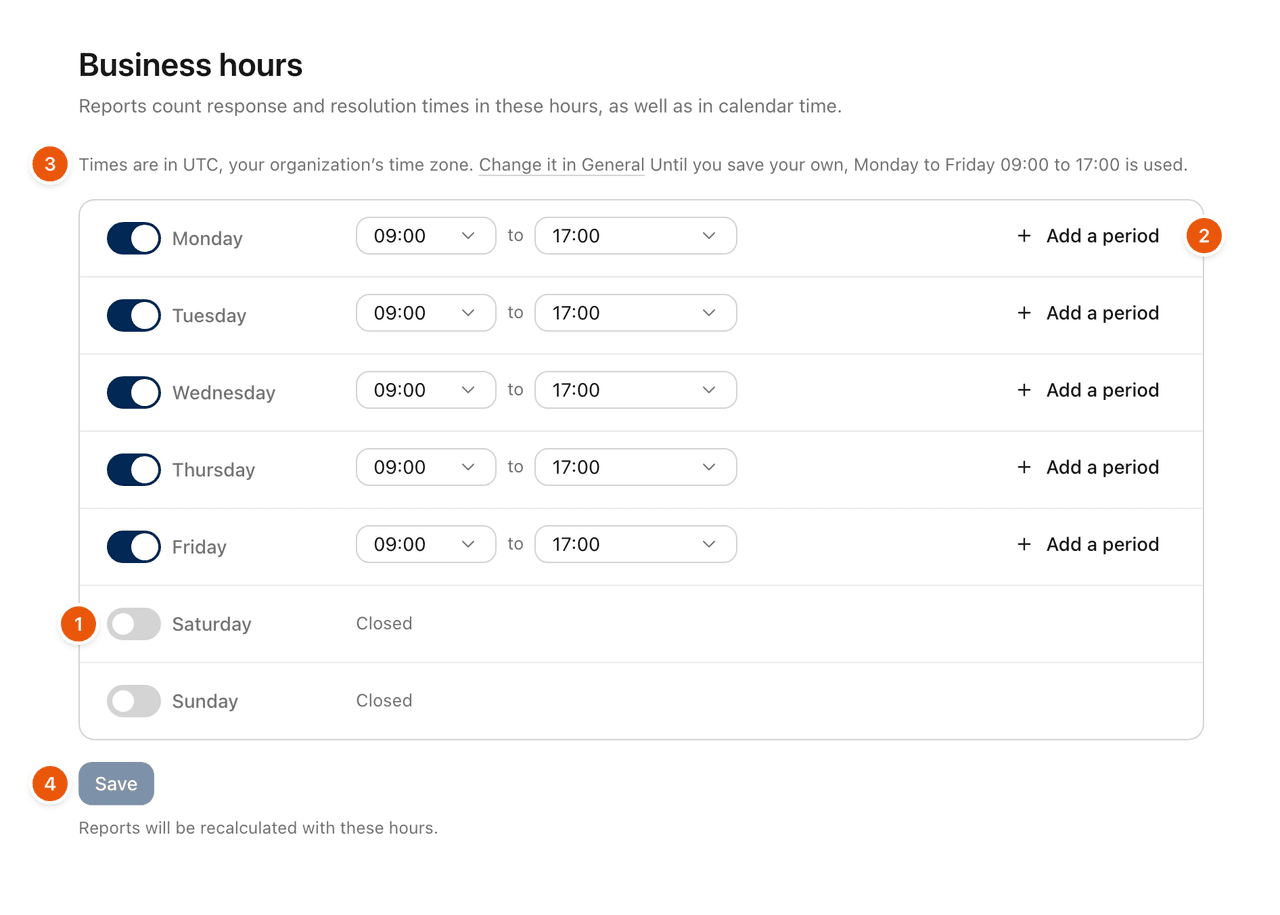
Turn each day on or off. A day that is off is closed.
Set the opening and closing time. Times go in half hours. Add a period adds another, up to four a day.
The hours are in your organization's time zone, shown above the days. Change it in Settings › General. See Organization profile, logo and time zone.
Select Save.
The page starts with Monday to Friday, 09:00 to 17:00. Use Monday to Friday 9 to 5 puts that back.
Saving recalculates all your reports with the new hours. Until you save business hours, Reports shows times in calendar hours only.
Related
Was this helpful?
Still stuck?
Email hello@zevinbox.com with what you tried, and the team answers.