Members and invitations
Change roles, remove people, resend or revoke invitations, and leave an organization.
Updated 2 min read
Settings › Members lists everyone in your organization. Owners and admins manage people here. Members can see the list but not change it.
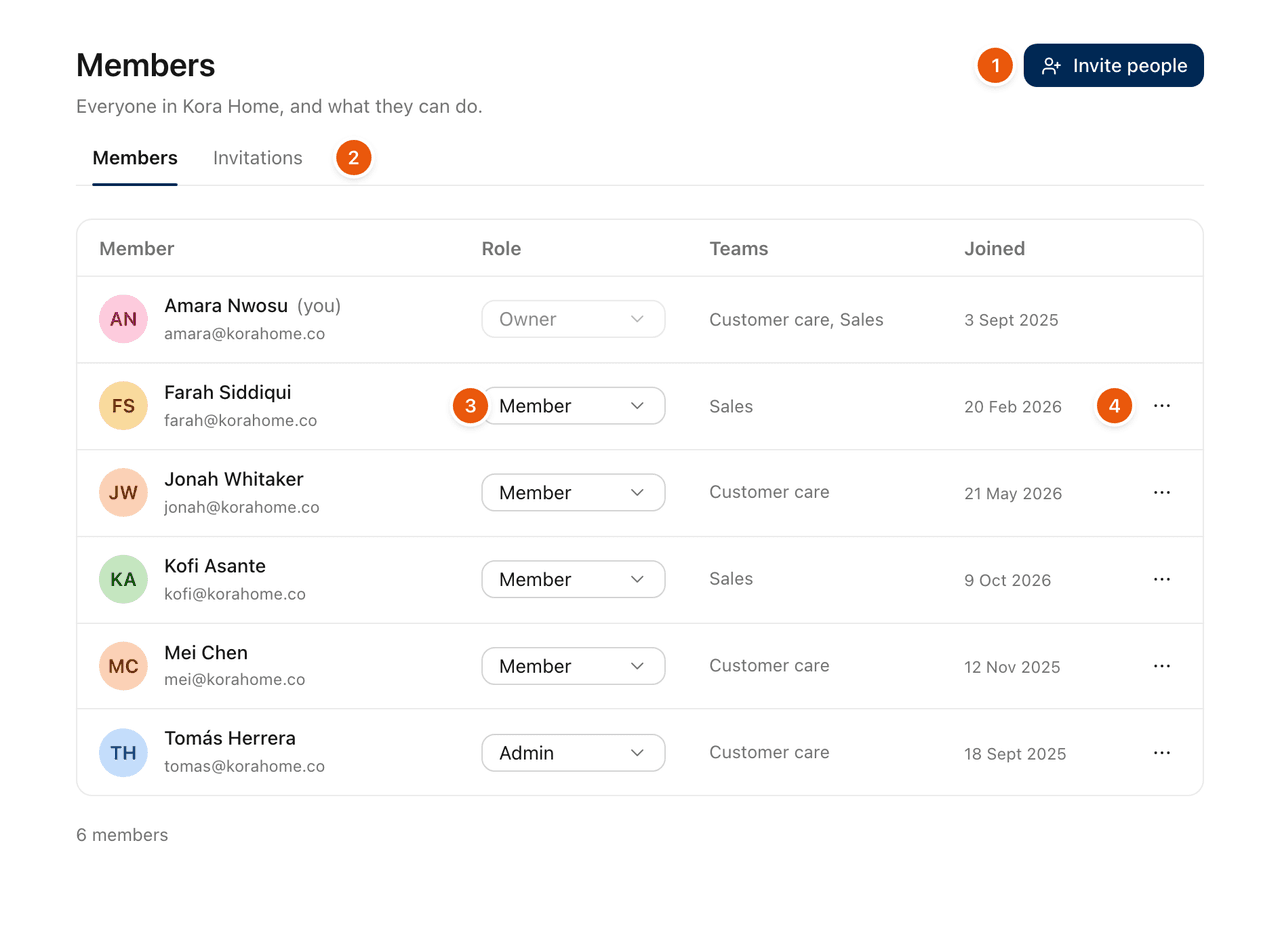
You can search the list, filter it by role or team, and sort it by name or date joined.
Change someone's role
Owners and admins only.
Go to Settings › Members.
Open the role menu on the person's row.
Choose Owner, Admin or Member. The change applies straight away.
Only an owner can choose Owner, or change the role of someone who is already an owner. The last owner's role cannot be changed. See Roles and what each can do.
Remove someone
Owners and admins only.
Go to Settings › Members.
Open the … menu on the person's row and select Remove from organization.
Confirm.
What happens:
They lose access to every inbox in the organization straight away, and they are told by email.
Conversations they worked on stay where they are. Their replies and notes keep their name.
Conversations assigned to them become unassigned.
Their unsent drafts in the organization are deleted.
Nobody can remove themselves. To go, use Leave (below). Removing someone frees their place on your plan.
Invite people
Select Invite people, enter an email address, choose a role and, if you like, teams. See Invite your team.
Pending invitations
Go to Settings › Members › Invitations. The tab shows how many are waiting. Each row shows the email address, role, teams and when it was sent. Hover over the status to see who sent it and when it expires.
An invitation is valid for 7 days. After that it shows Expired.
Resend sends the email again. On an expired invitation, it renews it. There is a limit on how often you can resend to the same address.
Revoke cancels the invitation. The link in the email stops working.
Leave an organization
Anyone except an owner can leave.
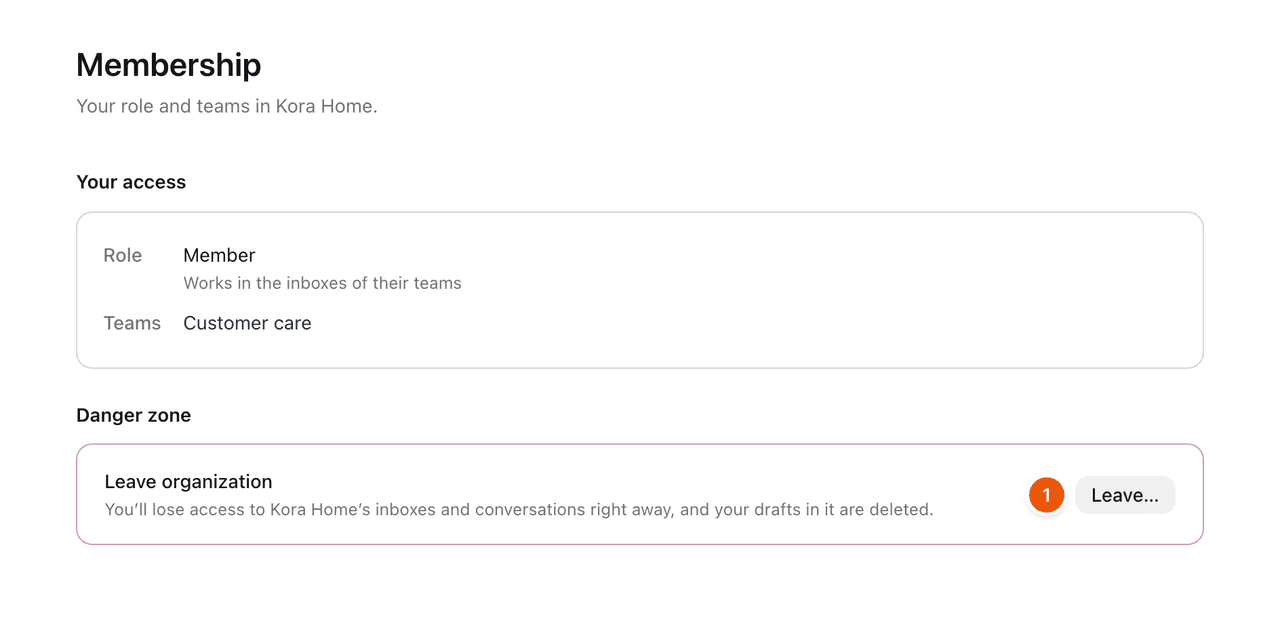
Go to Settings › Membership.
Select Leave….
Select Leave organization to confirm.
You lose access to its inboxes, conversations and settings right away, and your unsent drafts in it are deleted. Your ZevID account stays, and so do your other organizations. To come back, an owner or admin has to invite you again.
An owner sees Transfer ownership instead of Leave…. Hand ownership to an admin first, then leave as an admin. See Transfer ownership, delete or restore an organization.
On the phone apps, Settings › Membership opens this page on the web.
Related
Was this helpful?
Still stuck?
Email hello@zevinbox.com with what you tried, and the team answers.