Teams and team leads
Create teams, add people to them, and let a team lead manage their own team.
Updated 2 min read
A team is a group of people who answer the same inboxes, like Customer care or Sales. A member can open every inbox that any of their teams works.
Create a team
Owners and admins can create teams.
Go to Settings › Teams and select New team. You can also select New team (the plus) beside Teams in the sidebar.
Enter a Name and, if you like, a Description.
Select Create team.
ZevInbox opens the new team. Add its people on Members and its inboxes on Inboxes.
Add people and choose their team role
Open the team from Settings › Teams.
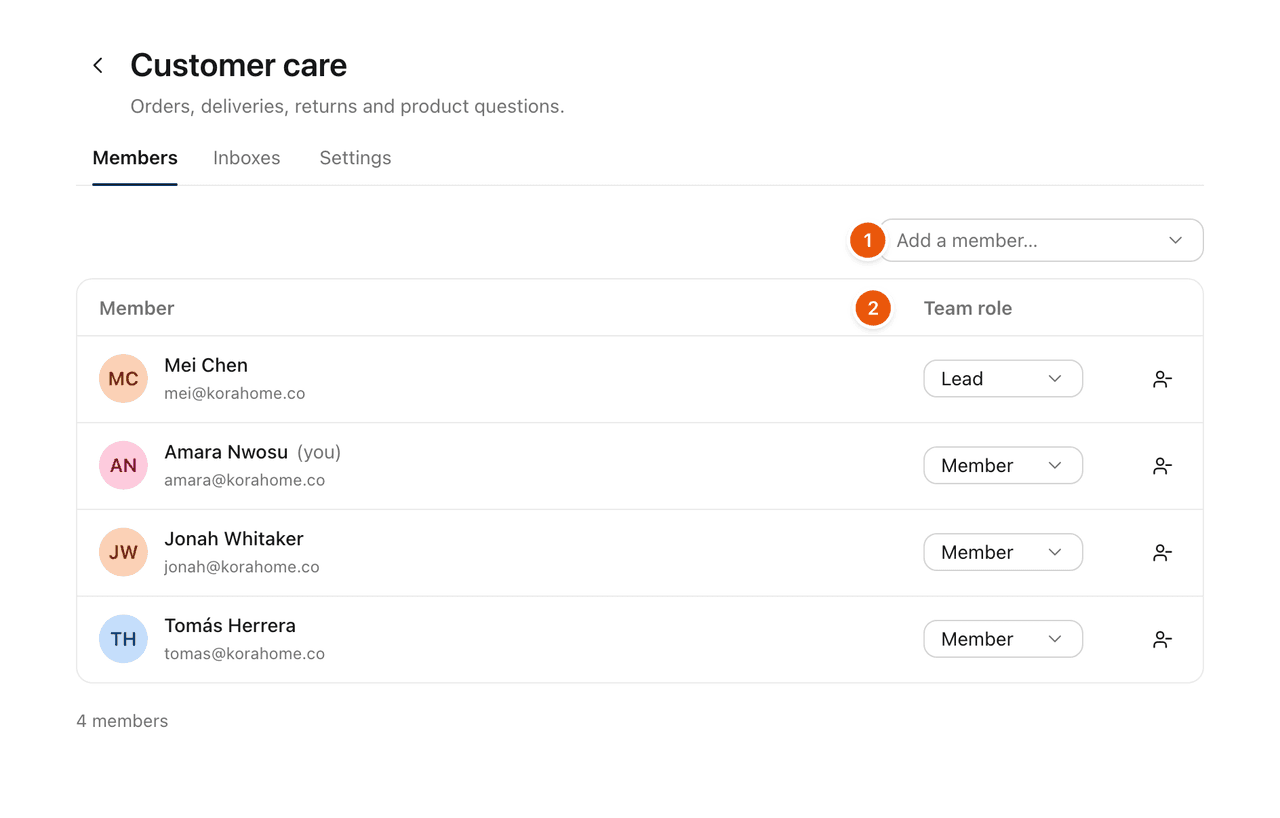
On the Members tab, use Add a member… to pick someone from your organization.
In the Team role column, choose Lead or Member.
Team role | What it means |
|---|---|
Lead | Works the team's inboxes, and manages this team's members. |
Member | Works the team's inboxes. |
To take someone off the team, select the remove button at the end of their row. They stay in the organization, and keep any other teams.
What a team lead can do
A team role is separate from a person's role in the organization. A lead is usually an organization Member, and on their own team they can:
add people to the team
remove people from the team
change who is a lead or a member
A lead cannot add or remove the team's inboxes, rename the team or delete it. Owners and admins do those. Owners and admins can also manage the members of every team.
Who sees which teams
In the sidebar, members see the teams they are on. Owners and admins see every team.
In Settings › Teams, everyone can see every team and who is on it. Only owners, admins and the team's leads can change it.
If someone is on no team yet, their sidebar says so, and an admin can add them to one. You can also choose teams when you invite someone. See Invite your team.
Related
Was this helpful?
Still stuck?
Email hello@zevinbox.com with what you tried, and the team answers.