Create an inbox
Add a shared inbox for an address like support@ or orders@, and choose the teams that work it.
Updated 2 min read
An inbox is one shared address. Every email sent to it becomes a conversation that the inbox's teams can see and answer. Owners and admins can create inboxes.
Create it
Go to Settings › Inboxes.
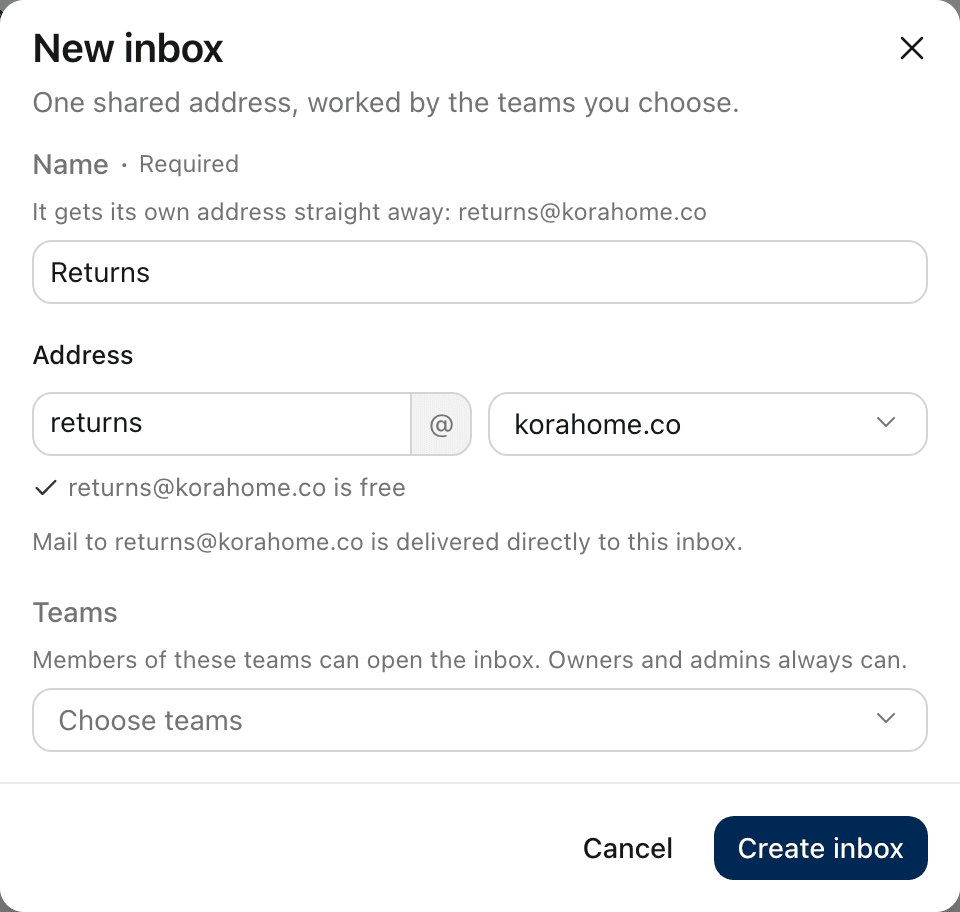
Select New inbox.
Enter a Name, for example
Support. This is what your team sees in the sidebar.If your organization has a domain, set the Address: the part before the @, and the domain. ZevInbox suggests one from the name and tells you if another inbox already uses it.
Under Teams, choose the teams that work this inbox. You can leave this empty and add teams later.
Select Create inbox.
ZevInbox then opens the new inbox's settings.
The address
The dialog tells you how mail will reach the new address:
What it says | What it means |
|---|---|
Mail to this address is delivered directly to this inbox. | Your domain uses ZevInbox as a full mailbox. Nothing else to do. |
Mail to this address must be forwarded from your current provider. | Your domain stays with your current provider. Forward the address to ZevInbox. |
See Forward your addresses from Google Workspace or Microsoft 365.
If you have not added a domain yet, there is no address to choose. The inbox still gets a ZevInbox address straight away, ending in .in.zevinbox.net, and it can receive mail on it. See Your ZevInbox address.
Who can open it
Members of the teams you chose can open the inbox.
Owners and admins can always open every inbox.
With no teams, only owners and admins can open it.
An inbox shows in the sidebar under each team that works it. To change its teams later, see Share an inbox between teams.
Related
Was this helpful?
Still stuck?
Email hello@zevinbox.com with what you tried, and the team answers.