Forward your addresses from Google Workspace or Microsoft 365
Keep your current provider and forward support@ and other shared addresses to ZevInbox.
Updated 2 min read
If you chose Keep your current provider, your shared addresses stay at Google Workspace, Microsoft 365 or wherever your email is today, and you forward them to ZevInbox. Replies still go out from your own address.
1. Find where to forward
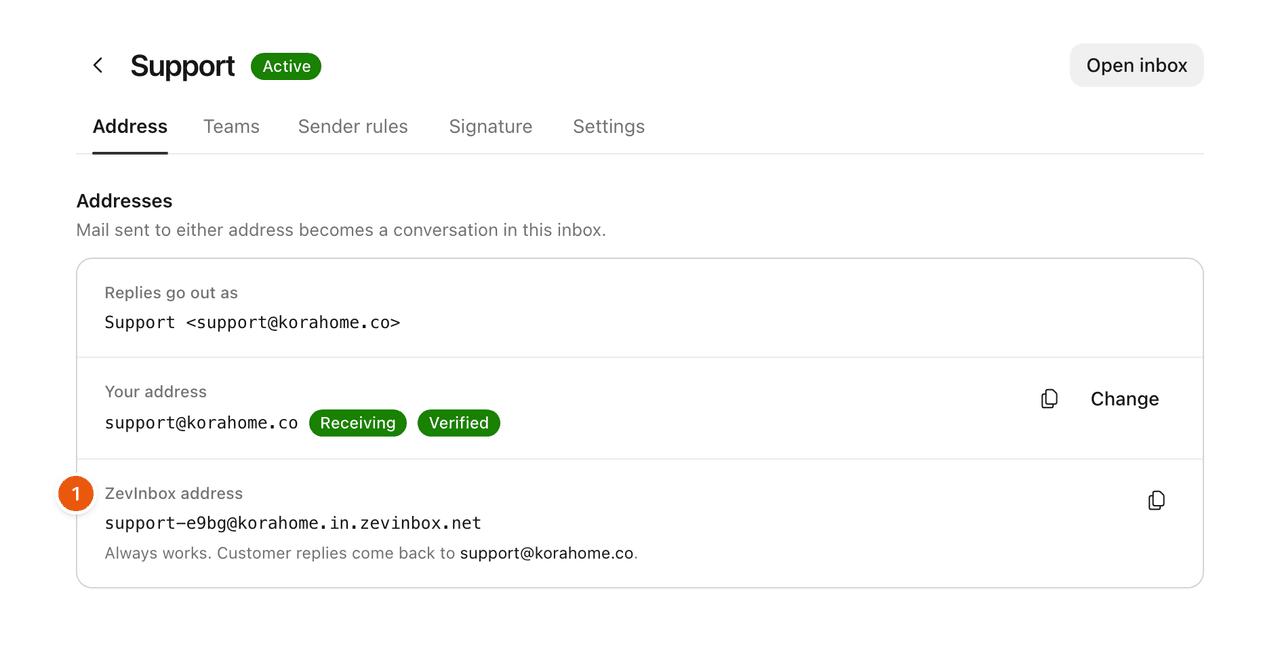
In ZevInbox, go to Settings › Inboxes and open the inbox.
On the Address tab, set Your address, for example
support@yourcompany.com.Copy its ZevInbox address, the one ending in
.in.zevinbox.net. This is where you forward to.
2. Forward at your provider
Google Workspace
If support@ is a Google Group, which suits a shared address:
Open the group in Google Groups.
Add the ZevInbox address as a member.
If Google refuses an outside address, your Google Workspace admin must allow members from outside your organization for the group.
If support@ is a user's mailbox:
In Gmail, open Settings › See all settings › Forwarding and POP/IMAP.
Select Add a forwarding address and paste the ZevInbox address.
Gmail sends a confirmation email to that address. It arrives in your ZevInbox inbox: open it there, and use the link or code in it to confirm.
Back in Gmail, choose Forward a copy of incoming mail to the ZevInbox address, and save.
Microsoft 365
Microsoft 365 usually blocks automatic forwarding to outside addresses, so there are two parts, and the first needs a Microsoft 365 admin:
Allow forwarding for the shared mailboxes. In Microsoft's outbound spam policy, allow automatic forwarding for only the mailboxes you connect to ZevInbox. Microsoft explains how in its outbound spam policy guide.
Forward the mailbox. In the Microsoft 365 admin center, open the shared mailbox, choose Email forwarding, enter the ZevInbox address, and save.
Any other provider
Look for forwarding in your provider's settings for that address, and forward it to the ZevInbox address. If they send a confirmation email first, it arrives in your ZevInbox inbox.
3. Test it
On the inbox's Address tab, select Send test email. ZevInbox sends a test to your address, and it shows as received as soon as it comes back through your forwarding.
The address then shows one of these:
Status | Meaning |
|---|---|
Receiving | Forwarded mail has arrived. |
Waiting for first email | Nothing has arrived yet: the address was just set up, or a test is on its way. |
Forwarding stopped | A test did not come back in time, and nothing has arrived since. Check the forwarding at your provider, then send another test. |
Was this helpful?
Still stuck?
Email hello@zevinbox.com with what you tried, and the team answers.