How your emails show who sent them
Choose the name on the From line of your team's replies.
Updated 1 min read
Every reply your team sends shows a name on its From line. You choose what it says. The address itself does not change: replies from Orders always come from orders@.
Owners and admins set it in Settings › General › Email, under Outgoing identity.
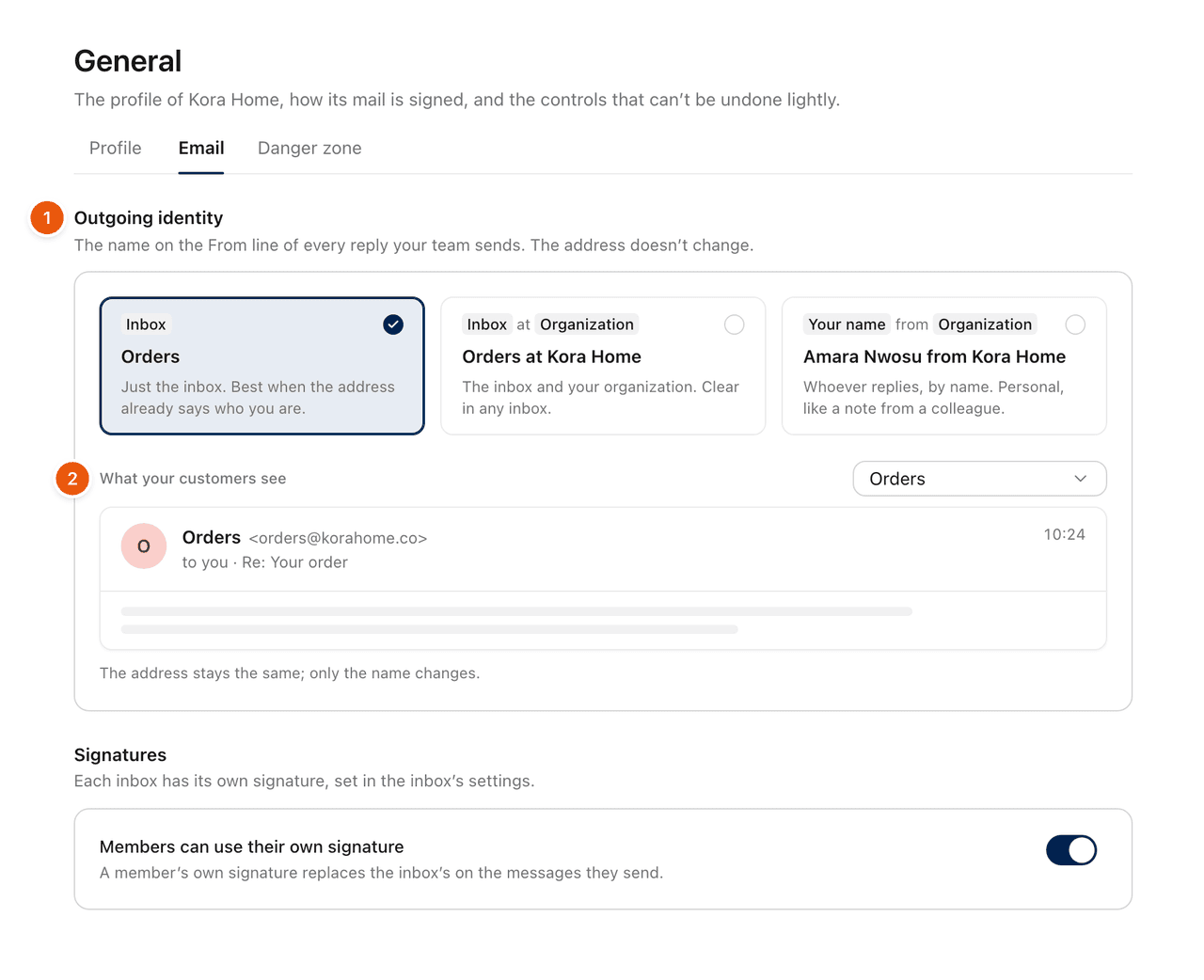
The three choices
Choice | Example | Best when |
|---|---|---|
Inbox | Orders | The address already says who you are. |
Inbox at Organization | Orders at Kora Home | You want the inbox and your business name, clear in any inbox. |
Your name from Organization | Amara Nwosu from Kora Home | You want a personal touch: customers see who replied, like a note from a colleague. |
What your customers see previews the From line exactly as it will look. Choose an inbox in the menu beside it to preview another one.
Signatures
On the same page, Members can use their own signature lets each person's own signature replace the inbox's on the messages they send. See Signatures.
Was this helpful?
Still stuck?
Email hello@zevinbox.com with what you tried, and the team answers.