Signatures
The inbox's signature, your own signature, choosing one for a single message, and the variables a signature can use.
Updated 3 min read
A signature is added under every message you send. ZevInbox adds it when the message goes, so it is never duplicated, and it always carries the name of whoever sends.
There are two kinds:
The inbox's signature, set by an owner or admin for each inbox.
Your own signature, which you set for yourself, if your organization allows it.
Which signature a message gets
ZevInbox uses the first of these that exists:
Your own signature for that inbox.
Your own signature.
The inbox's signature.
If none exists, the message has no signature.
When your organization turns off Members can use their own signature, every message uses the inbox's signature. See the last section below.
Set the inbox's signature
Owners and admins can do this.
Go to Settings › Inboxes and open the inbox.
Open the Signature tab.
Write the signature. Use Insert to add a variable.
Select Save signature.
Members see the inbox's signature on this tab, but cannot change it.
Set your own signature
Go to Settings › My signature.
On the My signature tab, write your signature under Your signature.
Select Save signature.
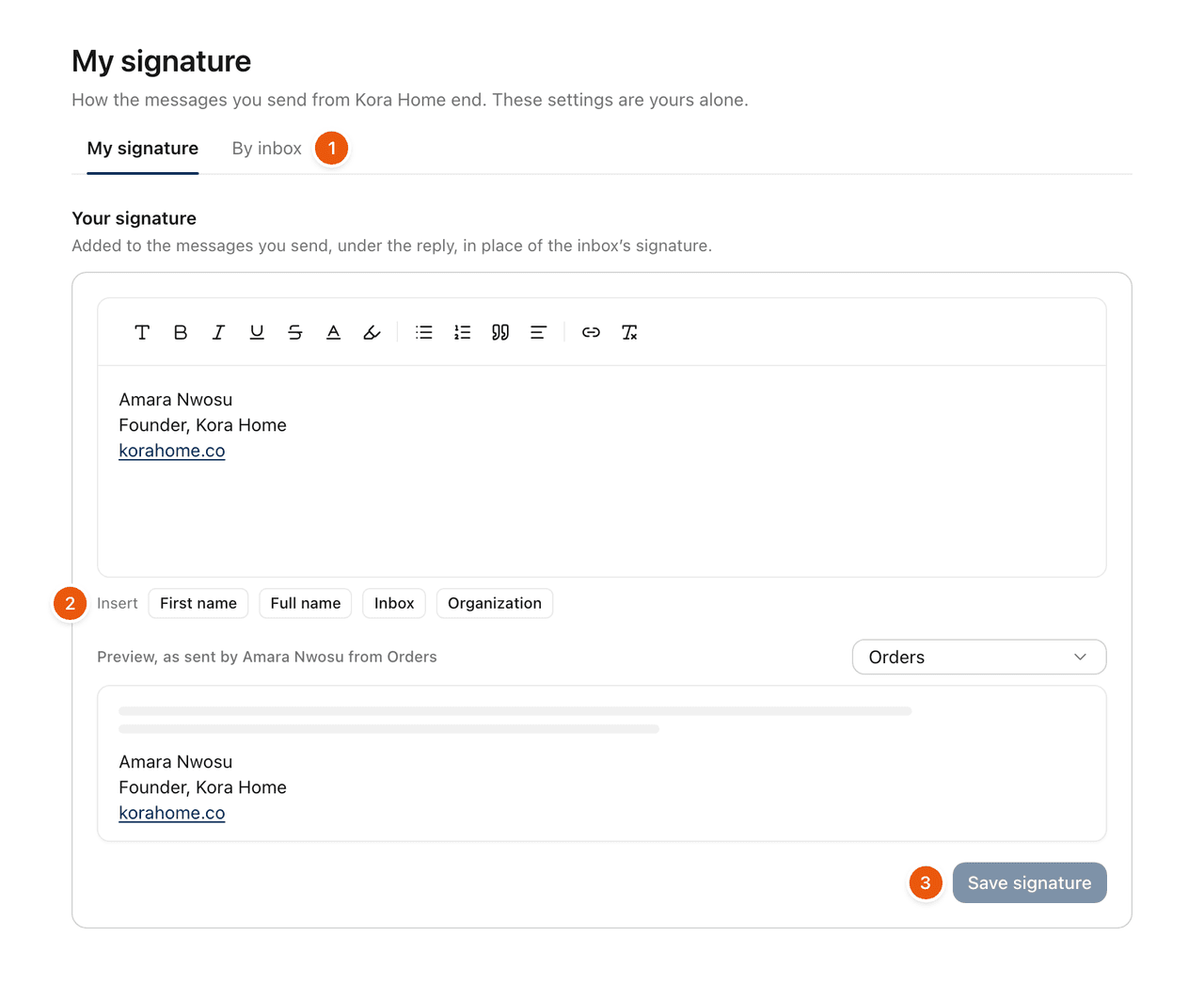
Your signature is used in every inbox, in place of the inbox's signature. The preview shows it as it will be sent. Choose an inbox beside the preview to see it as sent from there.
A different signature for one inbox
Open the By inbox tab (1).
Each inbox shows what you sign with there: Your signature for this inbox, Your signature, The inbox's signature or No signature.
Select Set for this inbox, write it, and select Save signature.
To go back to your usual signature in that inbox, select Edit, then Remove. Use With my own signature to list only the inboxes where you set one.
Variables
A variable is replaced with the real value when the message is sent (2).
Insert | Variable | Becomes |
|---|---|---|
First name |
| The sender's first name |
Full name |
| The sender's full name |
Inbox |
| The inbox's name |
Organization |
| Your organization's name |
Variables are most useful in an inbox's signature: one signature then signs every teammate's messages with their own name. For example: {agent.firstName}, {inbox.name} at {org.name}.
Choose for one message
The signature shows under your text while you write. To change it for this message only, select the signature button in the reply box or new message.
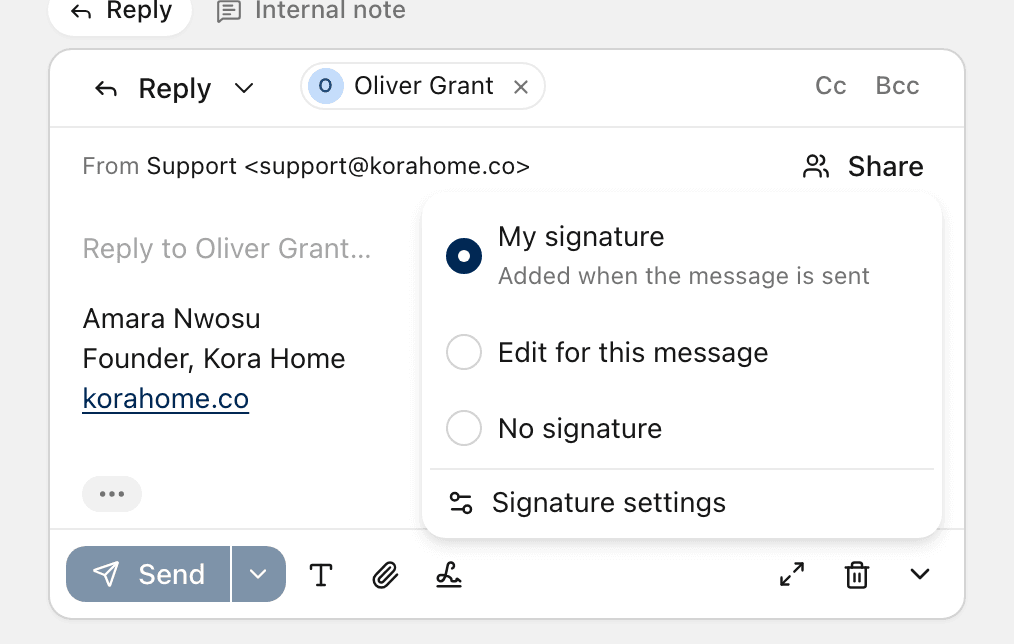
Choice | Does |
|---|---|
My signature, or the inbox's, for example Support signature | The usual one, added when the message is sent. |
Edit for this message | Turns the signature into text you can change, for this message only. |
No signature | Sends this message without one. |
Signature settings | Opens My signature. |
If no signature is set anywhere, the menu offers Write a signature for this message and Set up your signature.
On a draft you write together, everyone on it sees the same choice. The usual signature is that of whoever selects Send.
The organization's choice
Owners and admins decide whether members can use their own signature.
Go to Settings › General › Email.
Under Signatures, turn Members can use their own signature on or off.
When it is off, every message carries its inbox's signature. Signatures people saved are kept, not used, and come back if it is turned on again. My signature then says your organization signs every message with the inbox's signature.
Related
Was this helpful?
Still stuck?
Email hello@zevinbox.com with what you tried, and the team answers.