Send later and manage scheduled replies
Schedule a reply or a new message for a set time, then change, send or cancel it before it goes.
Updated 3 min read
Send later keeps your message as a draft with a time on it. At that time ZevInbox sends it, as you.
Schedule a message
Write your reply or new message.
Select the arrow beside Send (More ways to send).
Under Send later, choose a time, or Pick a date and time….
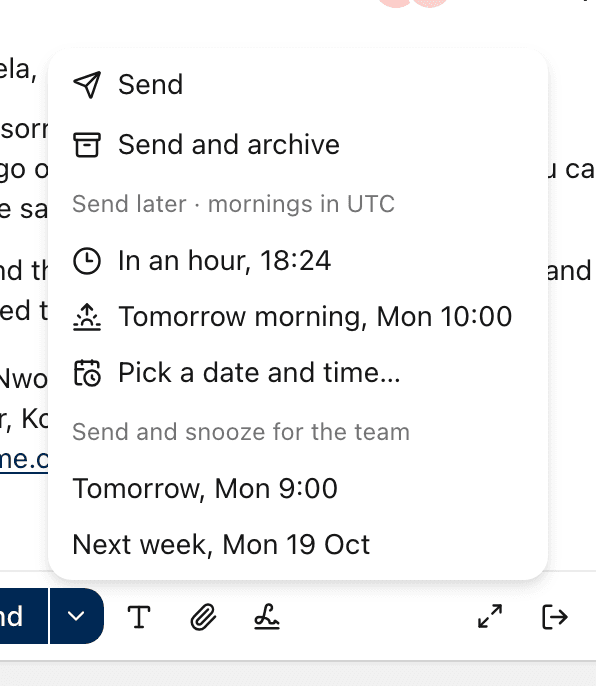
Choice | Sends |
|---|---|
In an hour | One hour from now. |
Tomorrow morning | Tomorrow at 9:00. |
Monday morning | Next Monday at 9:00. Not offered on a Sunday, when it is the same as tomorrow. |
Pick a date and time… | When you choose. Select Schedule to confirm. |
Mornings are 9:00 in your organization's time zone. If yours is different, the menu says whose morning it means, for example Send later · mornings in Lagos. The times in the menu are always shown in your own time zone.
A message can be scheduled at least a minute ahead, and up to a year ahead.
When it is scheduled, ZevInbox says Reply scheduled for and the time, with Undo.
See what is scheduled
In the conversation. Above the reply box, a line says You scheduled a reply for and the time. Teammates see who scheduled it and when, so nobody answers twice.
In the list. The conversation shows Scheduled. A teammate's scheduled reply shows a clock and their name.
In Drafts. Your scheduled messages are listed first, under Scheduled, soonest first.
Only you, and anyone you shared the draft with, can read what a scheduled message says. Everyone else sees that it exists.
Change, send now or cancel
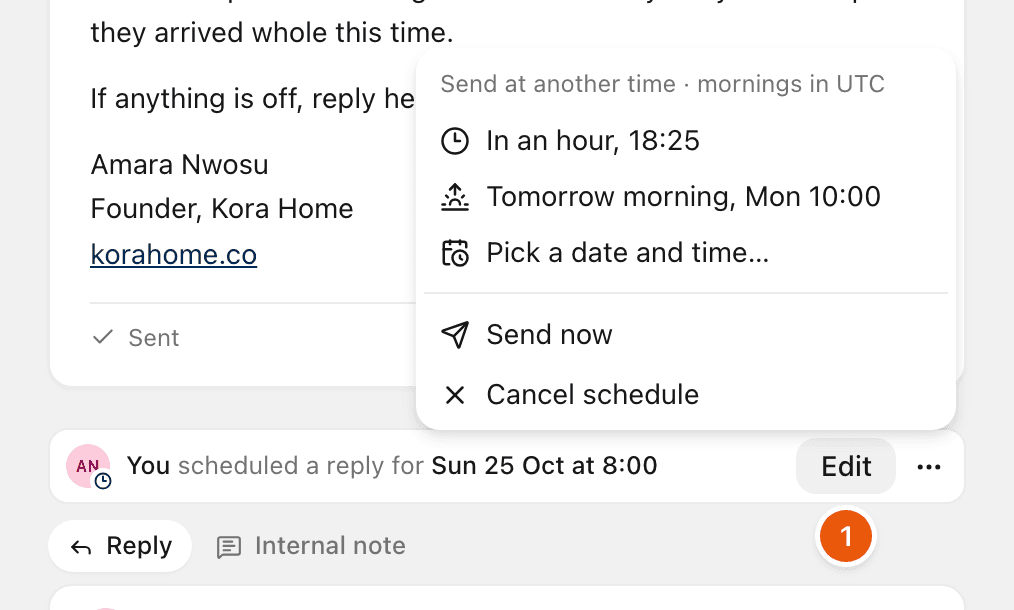
On the scheduled line, or on the message in Drafts:
Action | Does |
|---|---|
Edit | Takes the schedule off and opens the message, so you can change it. Schedule it again when you are done. |
Send at another time | Moves the time. In Drafts this is Change. |
Send now | Sends it straight away, with the usual 10-second Undo. |
Cancel schedule | Keeps it as a draft, with no time. |
A scheduled message cannot be changed while it has a time on it. Use Edit first.
Owners and admins can cancel a teammate's scheduled reply. They are asked to confirm, the reply stays in the teammate's drafts, and the teammate is told.
When a scheduled message does not go
The customer replied first. If the customer writes before your reply is due, it is held and not sent. You get a notification, so you can read their reply before you answer.
A teammate canceled it. You get a notification, and it stays in your drafts.
It could not be sent. The draft shows Not sent with the reason, and you get a notification. This email is always sent, even if you turned email off.
A held message shows Held in Drafts and above the reply box, with the reason. Schedule it again, send it, or select Dismiss.
On your phone
The ZevInbox app offers the same In an hour, Tomorrow morning and Monday morning under its send menu. Picking your own date and time is on the web.
Related
Was this helpful?
Still stuck?
Email hello@zevinbox.com with what you tried, and the team answers.