Write a draft together
Share a draft reply or new message with teammates, edit it together live, and let any of you send it.
Updated 2 min read
A shared draft lets you and your teammates write one email together. Everyone on it sees the others' changes as they type, and any of you can send it. It suits replies that need a second pair of eyes, or an answer that needs someone else's knowledge.
Your drafts save as you type. Until you share one, only you can read it. Teammates can see that you have a draft on the conversation, but not what it says.
Share a draft
Start a reply, or a new message, and write as much as you like.
Select Share at the bottom of the draft.
Tick the teammates you want on it. Only people who can open the inbox are listed.
Select Share with and their name, for example Share with Mei.
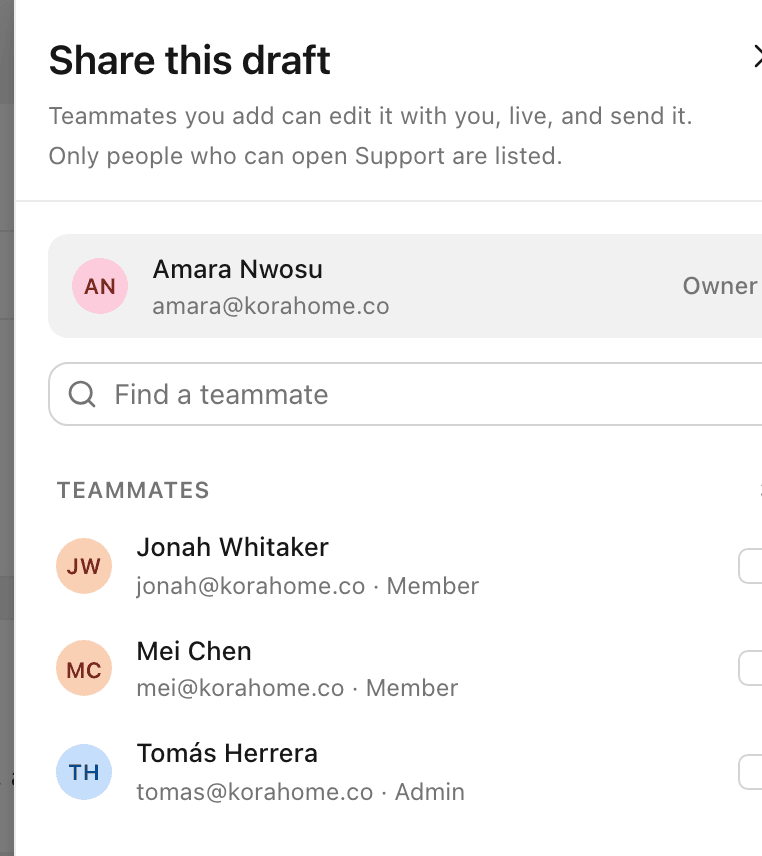
The people you add are notified. The draft's save note then reads Saved · shared, and Share becomes People, with the pictures of everyone on the draft.
Writing together
Everyone on the draft can edit it at the same time. Each person's cursor shows in their own colour.
A coloured ring on a picture means that person is editing right now. Point at the pictures to see who.
Any one of you can send it.
People who are not on the draft see a line under the thread such as Amara has a draft reply with Mei, and Private in place of an Open draft button. A teammate it was shared with sees Amara shared a draft reply with you and Open draft. Shared drafts also show in Drafts in the sidebar, with who shared them.
Who can do what
The draft's owner | People it is shared with | |
|---|---|---|
Read, edit and send it | Yes | Yes |
Add or remove people | Yes | No |
Delete it | Yes: Discard reply deletes it for everyone on it | No |
Leave it | No. Discard it instead. | Yes: Leave draft in the People panel, or Leave this draft |
To change who is on it, the owner selects People, ticks or unticks names, and selects Save.
Related
Was this helpful?
Still stuck?
Email hello@zevinbox.com with what you tried, and the team answers.