Internal notes and mentions
Talk about a conversation with your team, right inside it, and bring a teammate in with an @mention.
Updated 2 min read
An internal note is a message for your team, written inside the conversation. The customer never sees it. Use notes to ask a question, hand over context, or record what you did.
Write a note
Open the conversation.
Under the thread, select the Internal note tab.
Write your note. To mention someone, type @ and pick them from the list.
Select Post note, or press Enter. Press Shift+Enter for a new line.
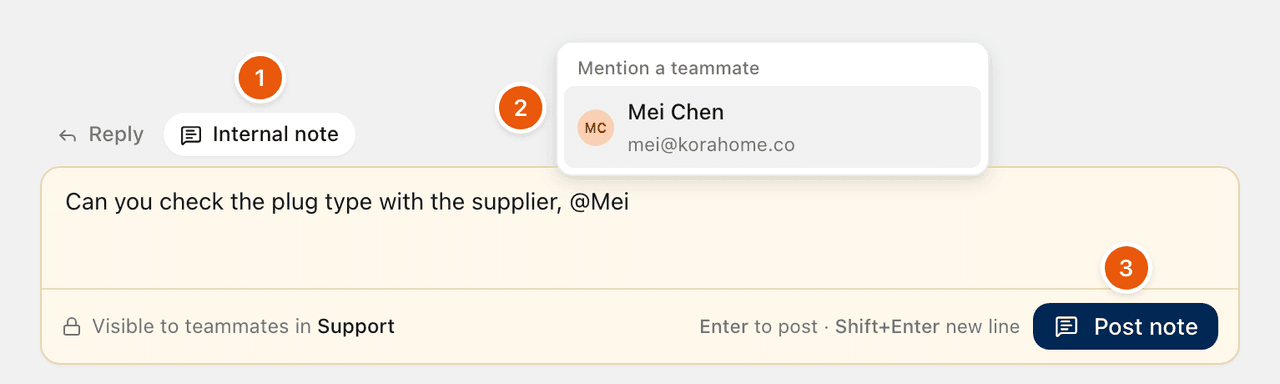
The box is yellow, and says who can see the note: Visible to teammates in the inbox's name. The note appears in the thread in yellow, with your name and the time.
Mention a teammate
Type @ and the start of a name, then choose the person, or use the arrow keys and press Enter or Tab. The list shows people who can open this inbox.
When you mention someone:
they get a notification, so they know you need them
they start following the conversation, so they hear when the customer replies
See The bell and Follow a conversation.
Writing a note also makes you follow the conversation.
Edit or delete a note
Open Note actions (the three dots) on your note:
Edit note: only the person who wrote it can edit it. An edited note shows edited.
Delete note: the person who wrote it can delete it. Owners and admins can delete anyone's note.
Where notes show
In the thread, between the emails, in the order they were written.
In the list, a speech bubble with a number shows how many notes a conversation has.
Search finds words in notes too. See Search and filters.
Related
Was this helpful?
Still stuck?
Email hello@zevinbox.com with what you tried, and the team answers.