Search and filters
Find any conversation by its words, people, notes or files, and narrow the results with filters.
Updated 2 min read
The search field is at the top of every page: Search mail, people and notes. Press / or ⌘ K (Ctrl K on Windows) to jump to it from anywhere.
What is searched
Subjects
The names and addresses of the people on a message
The text of messages
The names of attached files
Internal notes
Search covers every inbox you can open. It leaves out:
Spam and Trash, unless you include them.
Drafts. Open Drafts in the sidebar to find one.
The text and files of a quarantined message. Only its subject and people are searched.
Search as you type
As you type, suggestions appear under the field: people a message came from, teammates, inboxes and tags that match. Choosing one adds it as a filter. Words that match a page, like Notifications, also offer to take you there, under Go to.
Key | Does |
|---|---|
| Move through the suggestions |
| Take the suggestion |
| Open the top result |
| See all results |
| Clear the search |
Before you type anything, the field shows your recent searches, and a few examples of operators like from: and is:unread. Recent searches are kept on this browser. Select the cross beside one to forget it.
Filter the results
The results page shows how many conversations match, and the filters in use as chips.
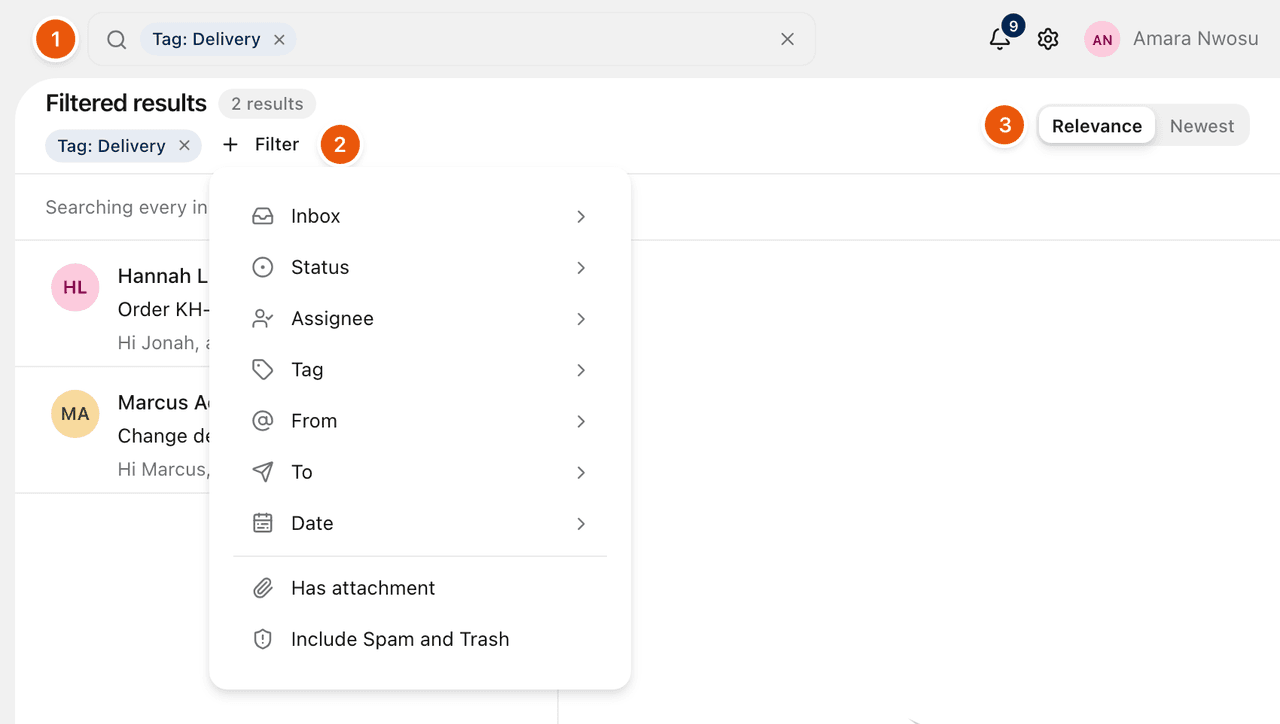
To add a filter, select Filter, with the plus sign (2), and choose one:
Filter | Narrows to |
|---|---|
Inbox | One inbox |
Status | Unread, Read, Open, Closed, Snoozed, Assigned, Unassigned or Following. Closed finds archived conversations. |
Assignee | Assigned to me, Unassigned, or a teammate |
Tag | One tag |
From | A name, address or domain it came from |
To | A name, address or domain it was sent to |
Date | Today, In the last 7 days, In the last 30 days, Older than a year, or your own range with From and Until |
Has attachment | Conversations with a file |
Include Spam and Trash | Searches those too |
To remove a filter, select the cross on its chip.
You can also type filters straight into the field, like from:hannah is:unread. See Search operators: the full reference.
Sort
Choose Relevance to see the best matches first, or Newest for the most recent (3).
When nothing matches
ZevInbox suggests checking the spelling, using fewer words, or removing a filter. If Spam and Trash were left out, it offers Search Spam and Trash too.
On a phone
In a phone's browser, the search field is behind the Search button in the top bar, and the sort choice is in the Filter menu. The ZevInbox app has search too. See ZevInbox on your phone.
Related
Was this helpful?
Still stuck?
Email hello@zevinbox.com with what you tried, and the team answers.