The bell
Where ZevInbox tells you about mentions, assignments, replies and more, and how to read and clear them.
Updated 2 min read
The bell is in the top bar. A number on it shows how many notifications you have not read yet.
Open your notifications
Select the bell. Your notifications open in a panel on the right, newest first, grouped by Today, Yesterday, This week and Earlier.
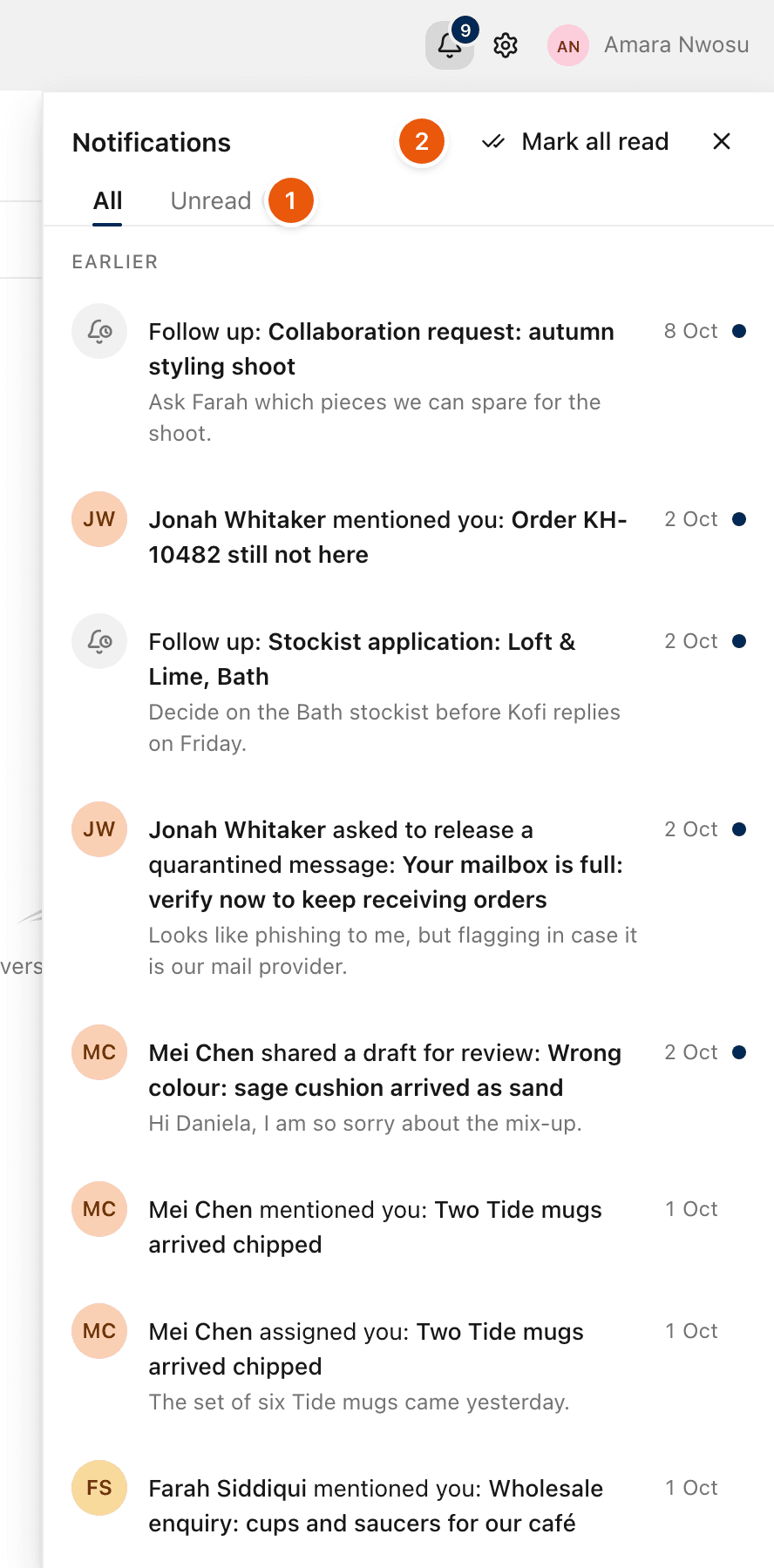
Select a notification to open what it is about, for example the conversation. It is then marked read.
Unread notifications have a dot at the end.
Select Unread (1) to see only those.
Select Mark all read (2) to clear the count.
Select the bell again, press
Esc, or click anywhere outside the panel to close it.
What the bell tells you about
Notification | When |
|---|---|
Mentions | A teammate mentions you in a note. |
Assignments | A teammate assigns a conversation to you. |
Customer replies | A customer replies on a conversation assigned to you, or one you follow. |
Shared drafts | A teammate shares a draft with you. |
Reminders | A reminder you set is due. |
Snoozes | A conversation of yours is snoozed by a teammate, or comes back from snooze. |
Teams and inboxes | You are added to a team, or an inbox is shared with a team you are on. |
Private conversations | Someone requests access, grants it, or changes your access to a private conversation. |
Scheduled messages | A message you scheduled was held or not sent. |
Owners and admins also hear about the organization: accepted invitations, release requests for quarantined mail, domains, the sending allowance, sending being paused, and billing notices such as an invoice. Everyone hears if the organization is scheduled for deletion or restored.
New conversations from customers are never in the bell. You can choose to get them as a push or an email instead. See Choose what you are notified about.
Sound
ZevInbox can play a short sound when a notification arrives, unless you are looking at the bell. Turn it on or off in Settings › Notifications, under Sound. It is set for each browser.
Email and your phone
The bell is the same on the web and in the ZevInbox app. Most notifications can also reach you by email, and in the app as a push. See Choose what you are notified about and Push notifications on your phone.
Related
Was this helpful?
Still stuck?
Email hello@zevinbox.com with what you tried, and the team answers.