A tour of your workspace
What is in the sidebar, the conversation list and the top bar.
Updated 1 min read
This is the screen you work from. The sidebar on the left decides which conversations the list shows.
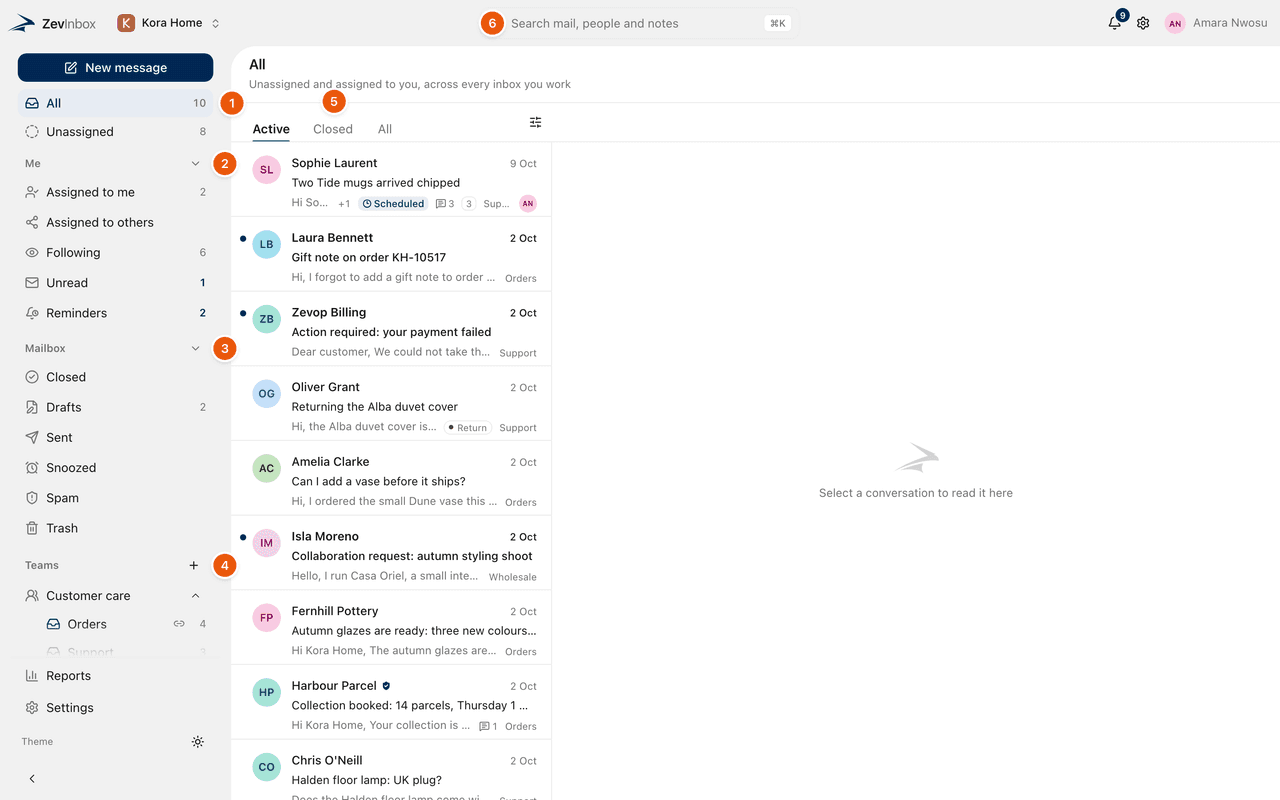
1. All and Unassigned
All shows conversations that are unassigned or assigned to you, across every inbox you work.
Unassigned shows conversations nobody has taken yet. This is where new mail waits.
The number beside a view is how many conversations are waiting in it.
2. Me
Your own work, across every inbox:
Assigned to me
Assigned to others, conversations your teammates own
Following, the conversations you follow. See Follow a conversation.
Unread
Reminders, the reminders only you can see. See Reminders only you see.
3. Mailbox
Closed, Drafts, Sent, Snoozed, Spam and Trash.
4. Teams
Each of your teams, with its inboxes underneath. Select a team to fold it open or closed, and an inbox to see only its conversations. Owners and admins can add a team with the + button.
5. The conversation list
The list for the view you chose. Tabs across the top narrow it, for example to Active or Closed. In a single inbox the tabs are Unassigned, Assigned, Closed, Archived and Snoozed.
The Display button beside the tabs changes how the list looks: compact or comfortable rows, how many tags to show, and whether to show each conversation's status and inbox.
6. Search
Search every inbox you can open, including internal notes and attachment names. Press / to jump to it. See Search and filters.
At the top right
The bell shows your notifications. See The bell.
The gear opens Settings.
Your name opens your account menu: managing your ZevID account, keyboard shortcuts, and signing out.
At the bottom of the sidebar
Reports, Settings, and Theme, which switches between matching your system, light and dark.
Was this helpful?
Still stuck?
Email hello@zevinbox.com with what you tried, and the team answers.