Choose what you are notified about
Turn each kind of notification on or off in the app and by email, choose alerts for new conversations, and how notification email works.
Updated 3 min read
Your notification settings are yours alone, and they are set for each organization you belong to. Go to Settings › Notifications. Every switch saves as soon as you change it.
The page has two tabs: Activity, for what happens on conversations and in your organization, and New conversations, for alerts when a customer writes in.
Activity
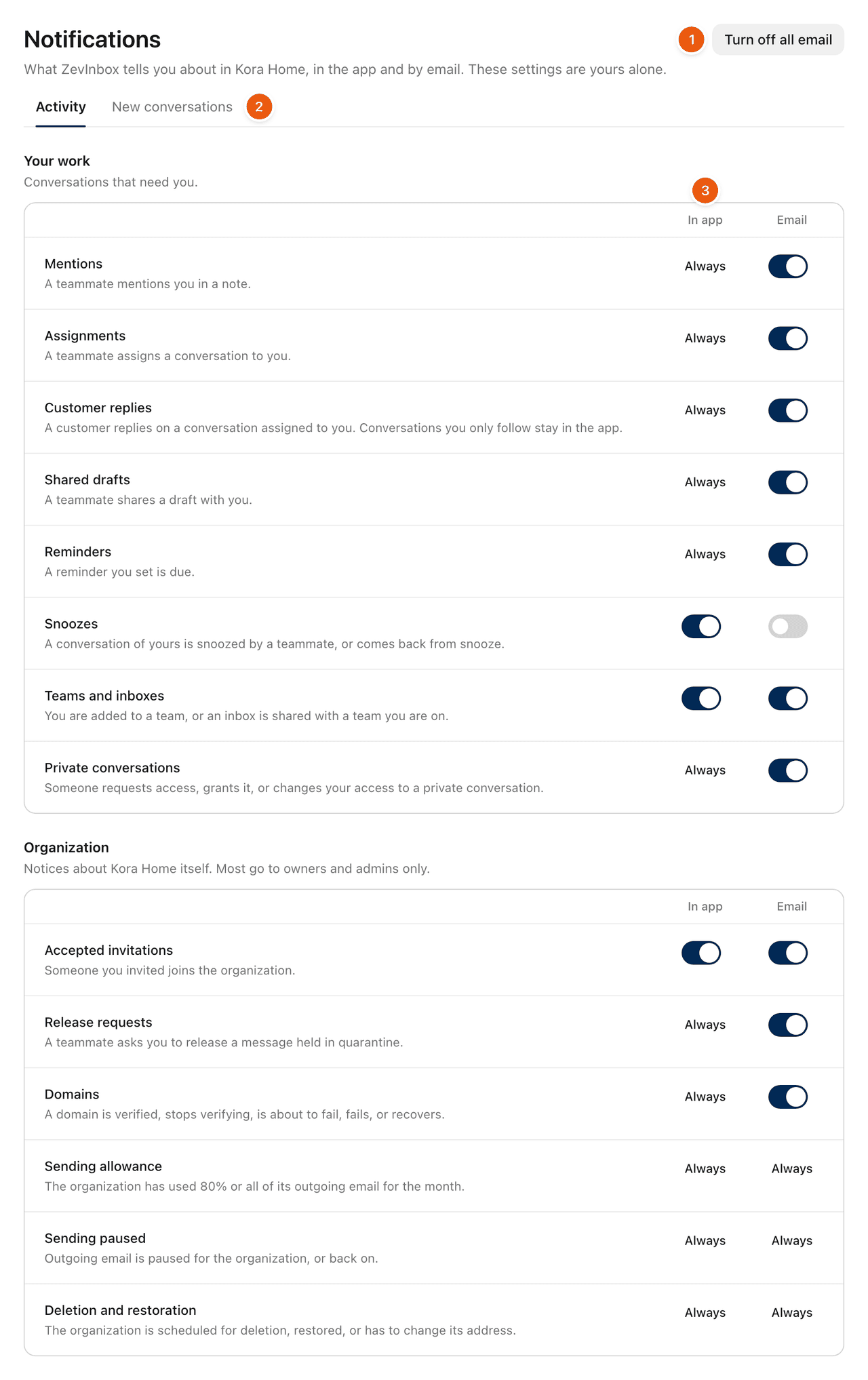
Each kind of notification has two columns (3):
In app: the bell, on the web and in the ZevInbox app.
Email: an email to the address you sign in with.
Always means it cannot be turned off there. Most notifications always show in the bell, so nothing is missed. You can turn off the bell for Snoozes, Teams and inboxes and Accepted invitations.
Your work covers mentions, assignments, customer replies, shared drafts, reminders, snoozes, teams and inboxes, and private conversations. Email for all of these is on to begin with, except Snoozes.
Organization covers notices about the organization. Most are for owners and admins only:
Notification | For |
|---|---|
Accepted invitations | Owners and admins |
Release requests | Owners and admins |
Domains | Owners and admins |
Sending allowance | Owners and admins |
Sending paused | Owners and admins |
Deletion and restoration | Everyone |
Turn off all email
Select Turn off all email (1) to stop every email that can be turned off. Notifications still show in the app.
How email works
Email waits 3 minutes. If you read the notification or open the conversation in that time, or have ZevInbox open, no email is sent.
One email, not ten. Everything that happens in those 3 minutes arrives together. Several replies on a conversation are one email, and a batch of assignments is one list.
Some emails are always sent. A change to your own access cannot be turned off: your role changes, you become the owner, or you are removed. Nor can the email that says a message you scheduled was not sent.
New conversations
Open the New conversations tab (2) to hear when a customer starts a new conversation. Each inbox you can open has two switches:
Push: a notification on your phone, from the ZevInbox app.
Email: an email, unless you have already opened the conversation.
Inboxes are in two groups:
Your teams: the inboxes of the teams you are on. Push is on for these to begin with.
Other inboxes: inboxes you can open as an owner or admin. Off unless you turn them on.
A monitoring inbox says Monitoring inbox: routine mail does not alert anyone. instead of switches. See Monitoring inboxes for routine mail.
Sound and celebrations
Two settings on the Activity tab are kept by each browser, not your account:
Play a sound when a notification arrives. Select Play to hear it.
Show celebrations: a short burst of confetti when you move a conversation to the status your organization celebrates. Select Preview to see it.
On your phone
In the ZevInbox app, go to Settings › What you are notified about. It has the same choices, plus Push. See Push notifications on your phone.
Related
Was this helpful?
Still stuck?
Email hello@zevinbox.com with what you tried, and the team answers.