Reply, reply all and forward
Answer a conversation from its inbox's address, copy people in, and forward a message to someone else.
Updated 2 min read
Every reply goes out from the inbox's own address, for example support@yourcompany.com, so your customer never sees a personal address. It lands in the same thread on their side.
Write a reply
Open the conversation.
Select Reply to under the last message, or press
R.Write your reply and select Send, or press
⌘ Enter(Ctrl Enteron Windows).
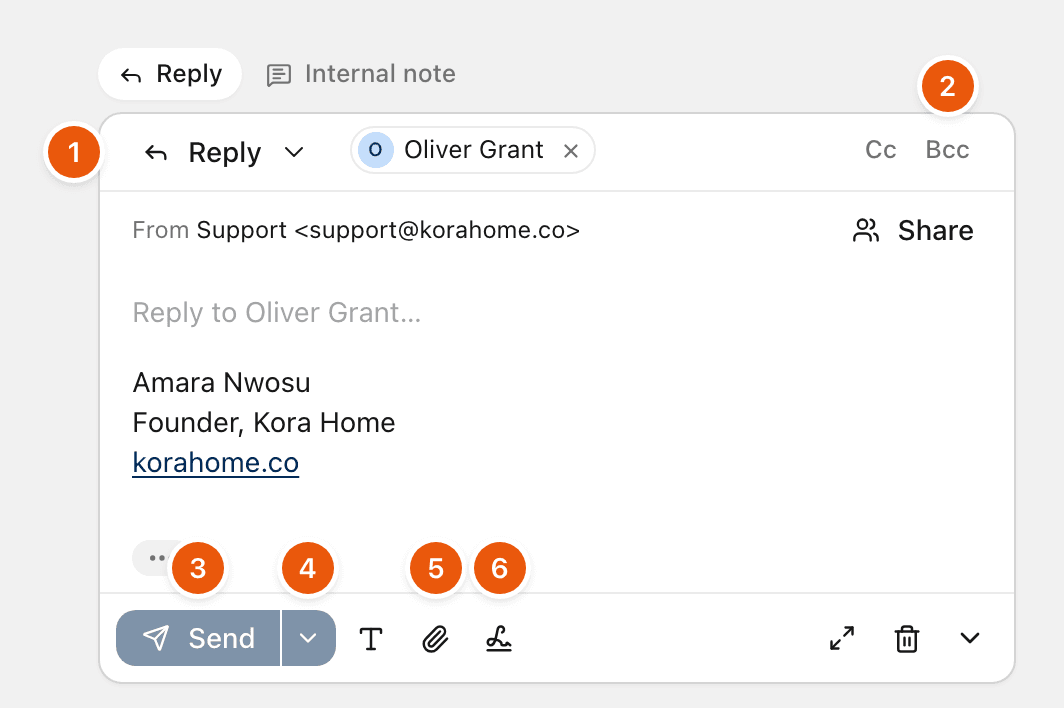
The box above the reply has two tabs: Reply writes to the customer, and Internal note writes to your team only. See Internal notes and mentions.
The line under the recipients shows From and the inbox's address, so you can check where the reply goes out from.
Reply all and forward
Use the menu at the start of the reply box (1) to switch between Reply, Reply all and Forward. You can also use a message's own buttons, or the keys:
Key | Does |
|---|---|
| Reply |
| Reply all |
| Forward |
Reply all only appears when the message went to more than one person besides you. It adds everyone from that message, except your own addresses.
Forward clears the recipients and asks Who should this go to?. It also shows a Subject line, starting with
Fwd:, that you can change. The original message's attachments come along, and you can remove any of them before you send.
To reply to an earlier message in the thread, not the latest, use the reply or forward buttons on that message.
Cc and Bcc
Select Cc or Bcc (2) to add the field. People in Bcc get the message, but nobody else sees that they did.
The quoted message
Replies quote the message you are answering, the way email usually does. Select the small … button under your text to see the quote before you send.
While you write
Your reply is saved as a draft as you type, on every device. The reply box says Draft saved.
Press
Esc, or select the arrow at the end, to fold the reply box away. It stays a draft and says Continue your reply to when you come back.Select the expand button to move the reply into a compose tab, where you have more room. It still sends into this conversation.
Select the bin to discard it. You can Undo that for a few seconds.
Select Share to write the reply together with a teammate. See Write a draft together.
On your phone, the ZevInbox app has the same Reply, Reply all and Forward. See ZevInbox on your phone.
Related
Was this helpful?
Still stuck?
Email hello@zevinbox.com with what you tried, and the team answers.