Start a new conversation
Write to someone first, from one of your inboxes, and keep writing while you read other mail.
Updated 2 min read
A new message starts a new conversation in the inbox you send it from. Replies come back to that conversation.
Write a new message
Select New message at the top of the sidebar, or press
C.In From, choose the inbox it goes out from. If you were in an inbox, that one is already chosen.
Fill in To, and Cc if you need it.
Add a Subject and write your message.
Select Send.
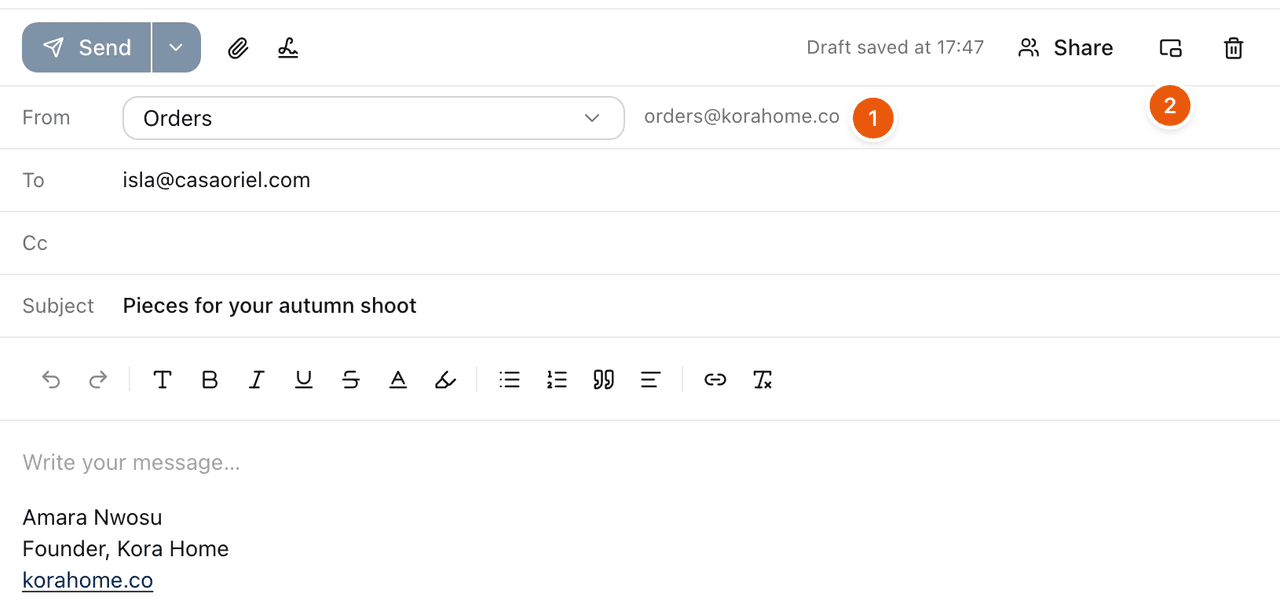
Send waits until the message has a recipient, a subject and some text. Hover over it to see what is missing.
When it is sent, ZevInbox opens the new conversation, and you can Undo for 10 seconds. See Undo send.
Where the message opens
A new message opens in the conversation area, as a tab in the strip along the bottom. Select Reading in that strip to go back to the conversation you were reading. Your message stays in its tab.
To keep writing while you read, select Pop out (2). The message moves to a window at the bottom right. In that window:
Button | Does |
|---|---|
Minimize | Folds it to a bar. |
Open in the conversation area | Puts it back in a tab. |
Close | Closes it. A message you started is kept in Drafts. |
Drafts
Messages you start and do not send are saved as you type, on every device. Find them under Drafts in the sidebar. A message you schedule waits there too, under Scheduled. See Send later and manage scheduled replies.
When New message is greyed out
You need an inbox that can send. An inbox can send once it has an address on a verified domain. Hover over New message to see why it is not available, for example that your domain is not verified yet. See Domain statuses and fixing Needs attention.
On your phone
In the ZevInbox app, use the compose button in the middle of the tab bar. See ZevInbox on your phone.
Related
Was this helpful?
Still stuck?
Email hello@zevinbox.com with what you tried, and the team answers.