Share an inbox between teams
Let more than one team work the same inbox, and see which inboxes are shared.
Updated 1 min read
One inbox can be worked by several teams. For example, Customer care and Sales can both answer orders@. It stays one inbox: both teams see the same conversations, assignments and notes. Owners and admins choose which teams work an inbox.
From the inbox
Go to Settings › Inboxes and open the inbox.
Open the Teams tab.
Add or remove teams in the list.
Changes save straight away. Members of every team in the list can open the inbox. Owners and admins can always open every inbox.
From the team
Go to Settings › Teams and open the team.
Open the Inboxes tab.
Select Add inbox, choose the inboxes the team should work, and select Add. To make a new one for the team instead, select Create a new inbox.
The Also worked by column shows the other teams on each inbox.
To take an inbox off a team, select Remove from team on its row, then confirm. The inbox and its mail stay. People lose access unless another of their teams works it. If no other team works it, only owners and admins can open it.
How a shared inbox looks
A shared inbox shows under each of its teams in the sidebar, with a link icon. Point at the icon to see which teams share it.
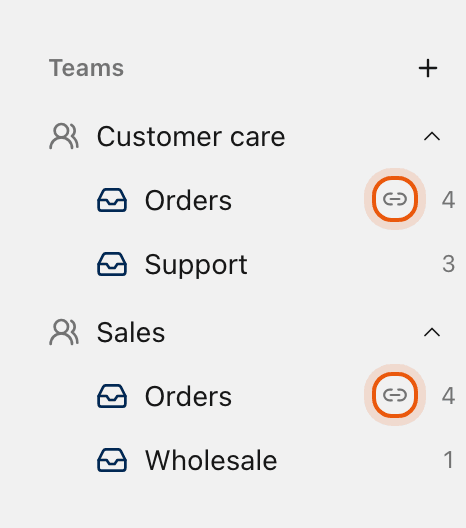
The number beside an inbox is how many of its conversations are unassigned.
Related
Was this helpful?
Still stuck?
Email hello@zevinbox.com with what you tried, and the team answers.