Assign a conversation
Make one person responsible for a conversation, take it yourself, or hand it back.
Updated 1 min read
Assigning a conversation makes one person responsible for it, so two people never answer the same email. Anyone who can open the inbox can assign its conversations.
Assign it
Open the conversation.
Select Assign at the top right. Once someone has it, the button shows their name, or You.
Choose who should have it.
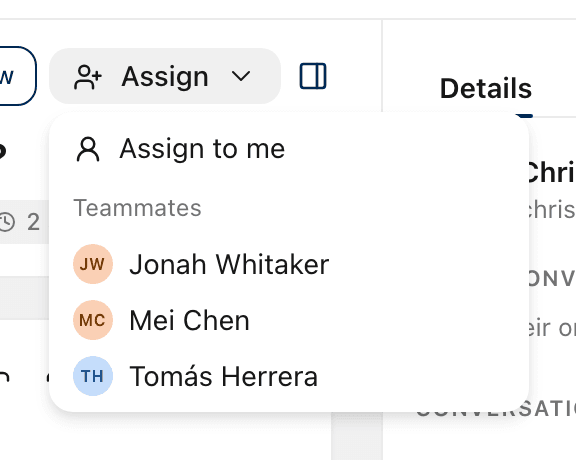
Option | What it does |
|---|---|
Assign to me | Makes it yours. |
Teammates | Gives it to that person. |
Unassign | Shows once someone has it. Puts it back in Unassigned. |
You can also assign from the Assignee row in the details panel.
Who you can assign to
The menu lists only people who can open the inbox: members of its teams, and every owner and admin. To assign someone else, an admin first adds them to one of the inbox's teams. See Share an inbox between teams.
What happens next
The conversation leaves Unassigned and shows in the assignee's Assigned to me.
In the inbox, it moves from the Unassigned tab to Assigned.
The assignee follows the conversation, so they hear when the customer replies.
The assignment is recorded in the conversation's activity.
Related
Was this helpful?
Still stuck?
Email hello@zevinbox.com with what you tried, and the team answers.