Pay an invoice
Find an invoice, pay it through ZevPayCheckout or by bank transfer when offered, and download it as a PDF.
Updated 2 min read
ZevInbox does not keep a card on file and never charges you automatically. Every payment is for an invoice, which owners and admins pay from Settings › Billing.
When invoices are issued
First invoice: when an owner chooses a plan.
Renewal: 7 days before a monthly period ends, or 14 days before an annual one. It is due on the day the period ends.
Upgrade: when an owner moves to a larger plan. See Change or cancel your plan.
Each invoice is emailed to the owners and to your billing email, with the PDF attached. Owners and admins also see it in the bell. The day before it is due, a reminder goes out if it is unpaid.
Pay
Owners and admins can pay.
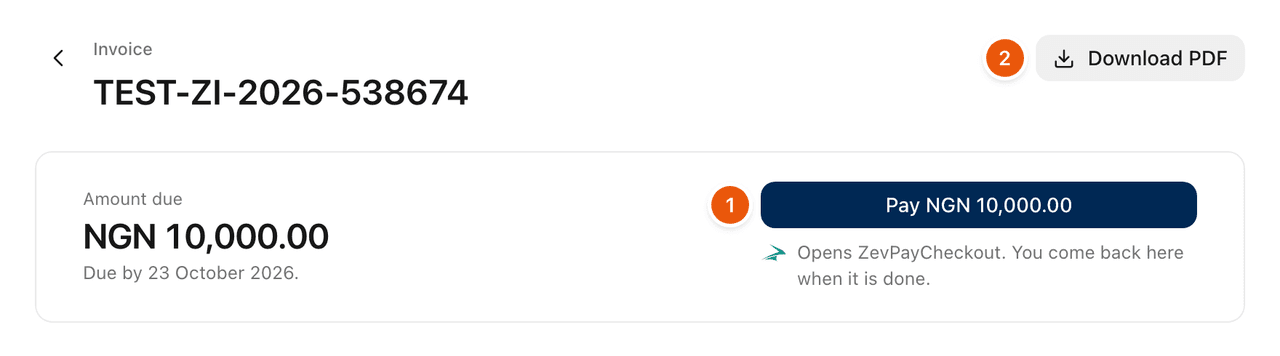
Go to Settings › Billing and select Pay now, or open the invoice from Invoices and select Pay.
On the invoice, select Pay with the amount.
ZevPayCheckout opens in the same tab. Pay there.
You come back to the invoice. It says Confirming your payment until the payment is confirmed, usually within seconds.
Once it is confirmed, the page says Payment received. Thank you. and a receipt is emailed, marked Paid. If confirming takes longer, you can leave the page. Select Check again to ask once more.
If the pay link has stopped working, select Get a new pay link.
Pay by bank transfer
Some invoices also show Or pay by bank transfer, with the bank, account name, account number and a reference. If yours does:
Transfer the exact amount due.
Use the reference shown, so the payment can be matched to the invoice.
Transfers are confirmed by Zevop's team, usually within one working day. If an invoice shows no bank details, pay through ZevPayCheckout.
Download an invoice
Select Download PDF on the invoice, or the download button on its row in Invoices. The PDF is the same invoice you see on screen.
Find an invoice
Settings › Billing › Invoices lists every invoice. Search by number, or filter by Status and Year.
Status | Meaning |
|---|---|
Unpaid | Issued and not yet due. |
Overdue | Its due date has passed. |
Part paid | Some of it has been paid. |
Paid | Paid in full. |
Credited | A credit note covers it in full. |
Void | Cancelled. Nothing is due on it. |
Billing details
Invoices are made out to the details in Settings › Billing › Billing details: Legal name, Billing email, country, address and Tax ID. Only owners can change them. Admins can read them.
Related
Was this helpful?
Still stuck?
Email hello@zevinbox.com with what you tried, and the team answers.