Hidden images and link checks
Why images in a message are hidden until you show them, and what happens when a link does not go where it says.
Updated 2 min read
Hidden images
Many emails load their pictures from the sender's server. Loading them can tell the sender that you opened the message, and when. So ZevInbox hides them until you ask, and says Images are hidden to protect your privacy.
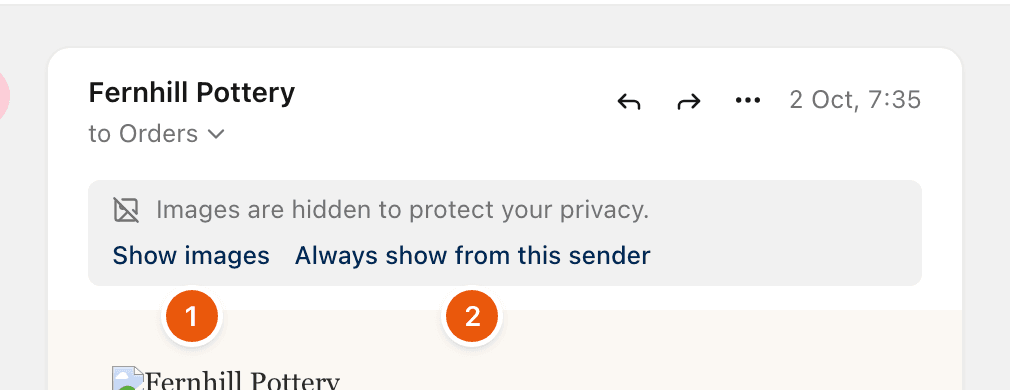
Select | Does |
|---|---|
Show images (1) | Shows the images in this message, this time. |
Always show from this sender (2) | Shows images from this address from now on, for you. |
When images do load, ZevInbox fetches them through its own servers. The sender's server never talks to your browser.
Always show from this sender is only offered on mail that passed sender verification, so a faked address cannot use it. To undo it, open the message's menu (the three dots) and select Stop always showing images.
Images from a trusted sender load for everyone in that inbox. See Not spam and trusted senders.
Link checks
A common trick is a link whose text shows one address but goes to another. ZevInbox spots these. When you select one, it asks first:
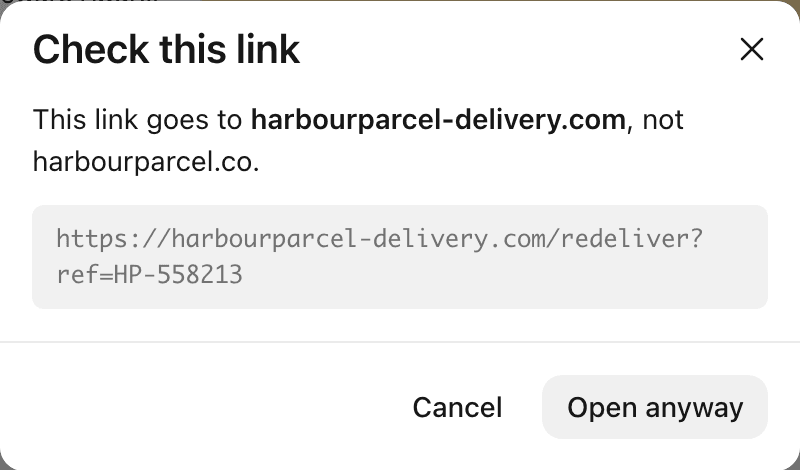
The dialog names the site the link really goes to, the one its text showed, and the full address underneath.
Select Cancel to stay where you are. This is the safe choice.
Select Open anyway only if you are sure. The link opens in a new tab.
Mail with such a link may also be marked Possible phishing: a link's text and its address do not match. If you open it anyway, the warning stays above the message. See Mark as spam and block a sender.
Related
Was this helpful?
Still stuck?
Email hello@zevinbox.com with what you tried, and the team answers.